


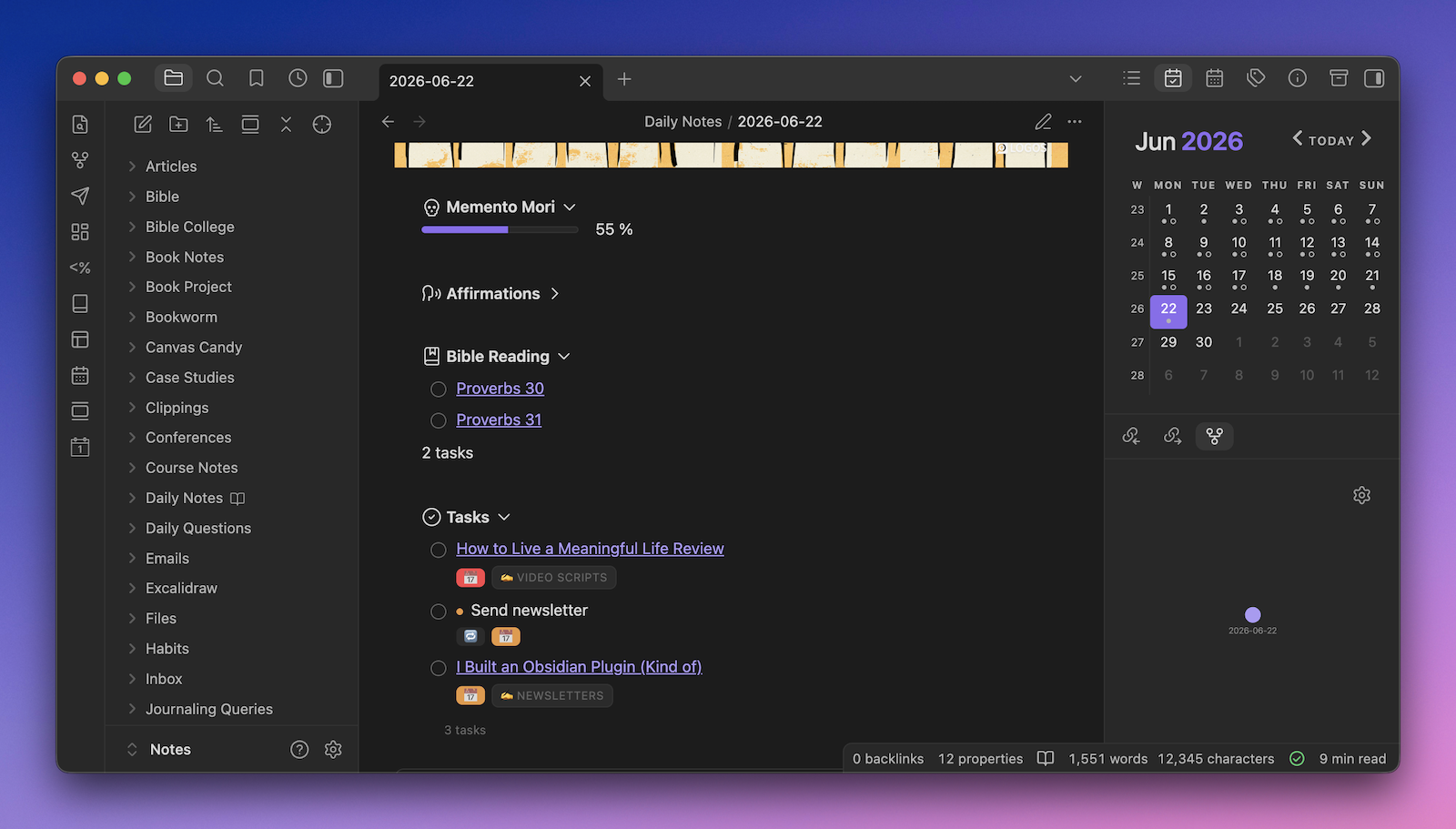
A few weeks ago, an Obsidian update quietly broke one of my favorite plugins.
A small tweak to the app destroyed every custom callout in my vault overnight.
As frustrating as this was, it’s not the first time something like this has happened. Right before I released LifeHQ, a plugin called Query Control was broken in the exact same way.
Last time, I had to scramble to find some kind soul in the Obsidian Discord who was willing to look at the abandoned plugin and try to update it for me.
This time, I used Claude Code and built my own replacement.
What Actually Happened
When Obsidian released version 1.3, they made a tiny change to the way that the app recognized CSS color codes. This caused the Callout Manager plugin (which I rely on heavily to create custom callout sections throughout my vault) to no longer render ANY color for those custom callouts.
The first thing I did was go to the plugin issues page to see if anyone else was having the same problem. Turns out I wasn’t alone, and someone even identified the specific cause in the initial issue report:
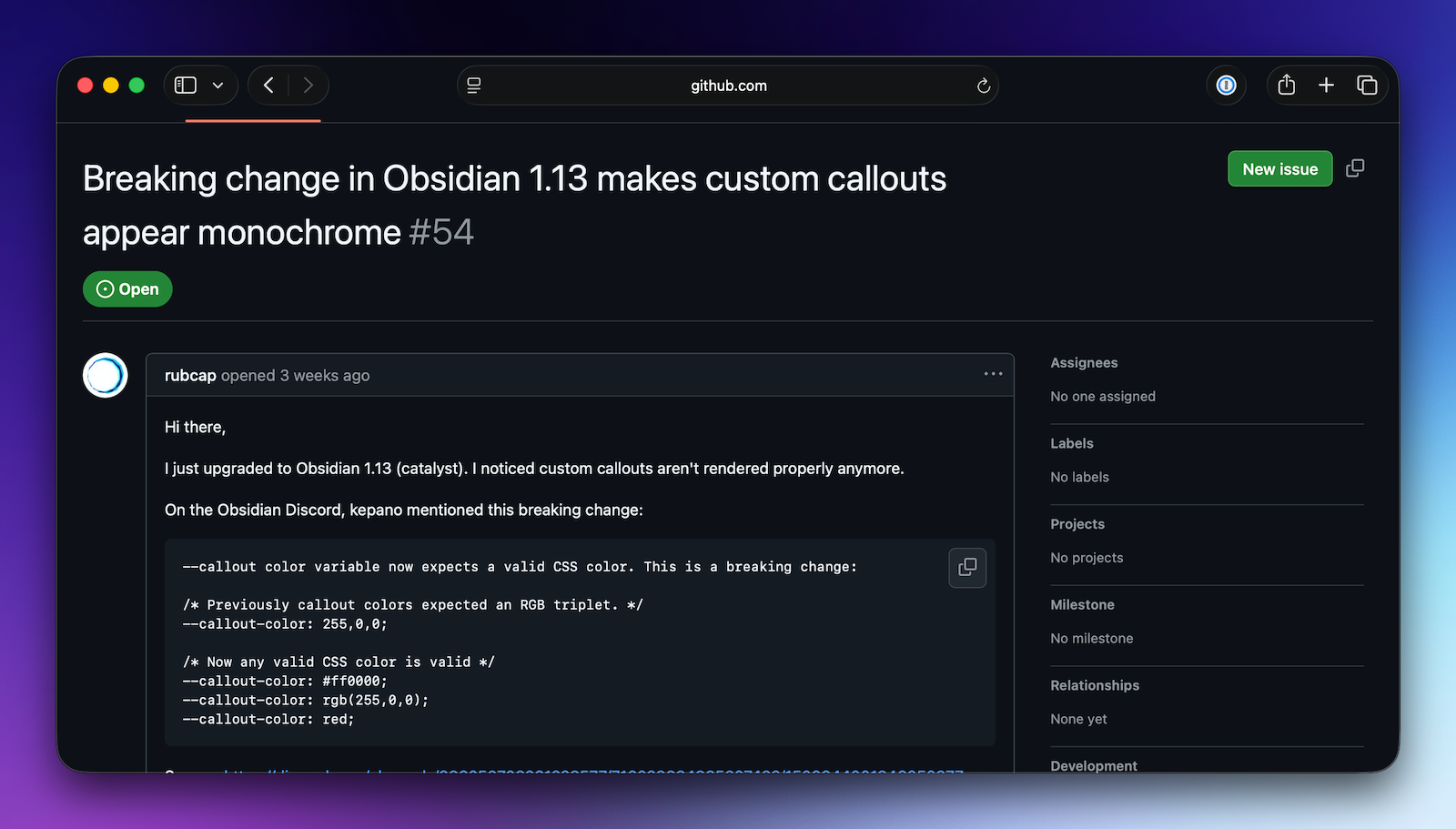
Seemed like it could be fixed pretty simply by changing the way that the Callout Manager plugin rendered the CSS color codes.
Unfortunately, as with a lot of community plugins, there was no response from the author for several weeks.
Can’t say as I blame them. It’s not like they’re getting paid for any of this development work.
So, with a clear understanding of the issue, I grabbed the URL for the plugin and went over to Claude.
Vibe-Coding My Obsidian Replacement Plugin
Building the replacement plugin was actually pretty easy. Claude already had access to my GitHub account, so I just pointed it at the broken plugin and asked it to fix the issue for me.
Here’s the exact prompt I used:
I want your help updating an abandoned plugin for Obsidian. The Callout Manager plugin no longer works because the new version of Obsidian requires the colors in hex codes, not RGB values. Here’s the Callout Manager plugin, please fix this and update it so that when you pick a color, it gets written as a 6-digit hex code so it still works with the new Obsidian: https://github.com/eth-p/obsidian-callout-manager
That was basically it. Claude took it from there, wrote the plugin, and published it to my GitHub account so I could install it via BRAT (a phenomenal tool for using beta plugins).
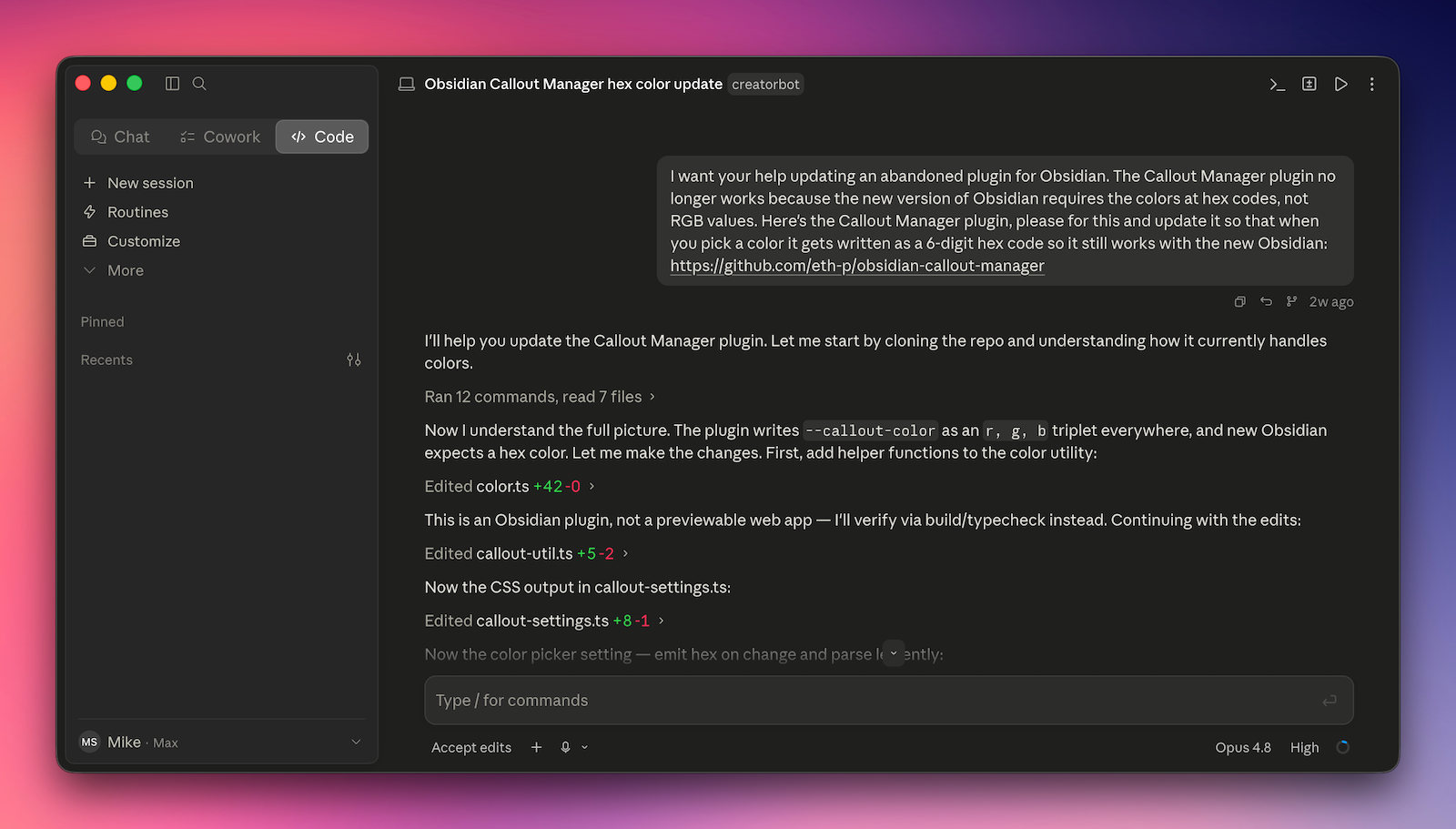
The whole thing took about 10 minutes.
But I didn’t stop there. I fixed a few other things in the plugin while I was at it, including some janky-looking buttons, some misaligned click targets, a bunch of empty space in the callout creation screen, and some small text issues. I even added a new feature that lets you export and import a code snippet with all your custom callouts, so you can save it somewhere and add them all at once into a new vault without having to create each one by hand.
The end result? My custom callouts are back 🙂
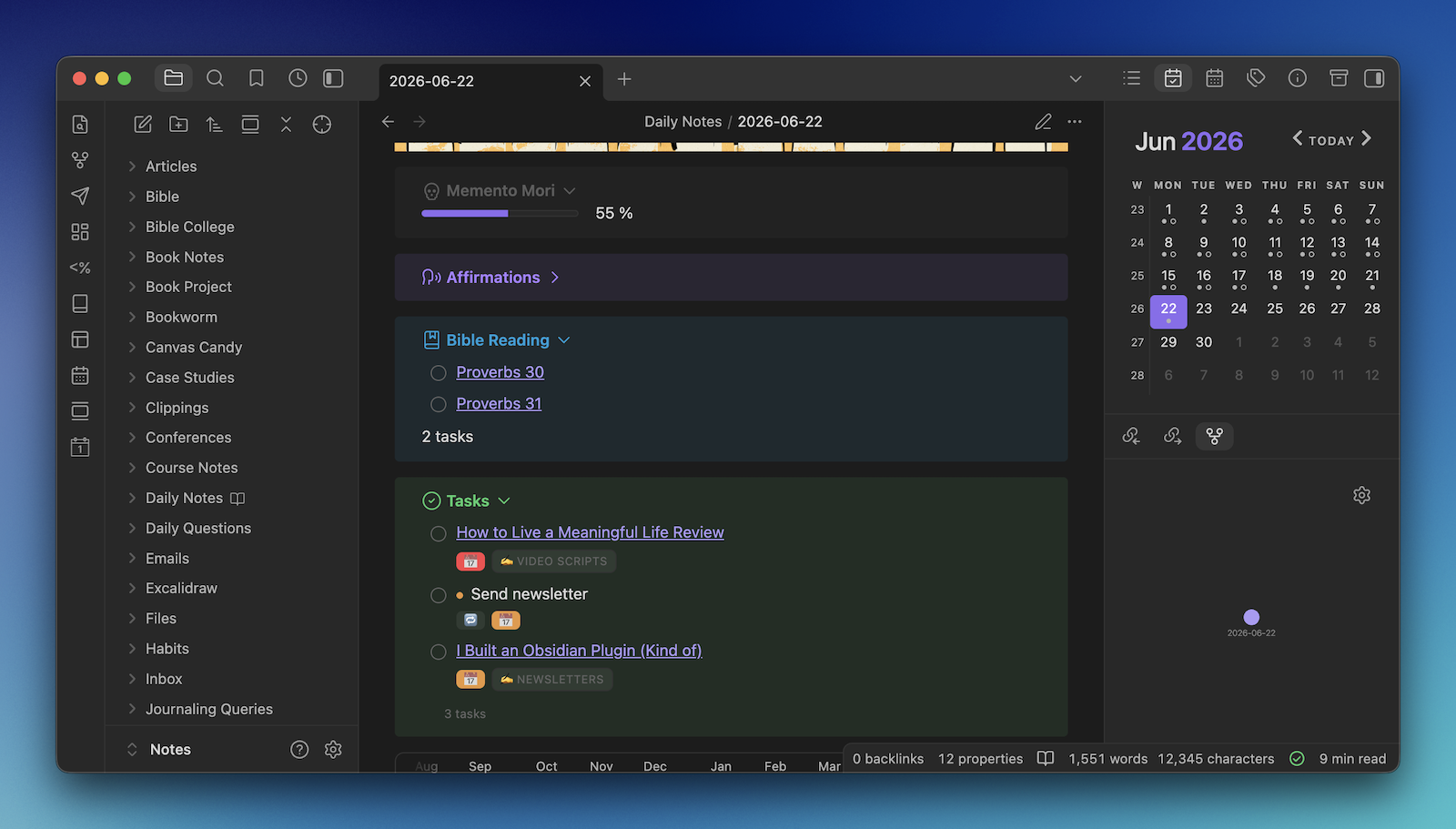
But even more importantly, I’m confident that if something else breaks in my Obsidian vault, I’ll be able to fix it myself.
Even though I am not a developer and don’t know the first thing about writing code for an Obsidian plugin.
Want to Try It Yourself?
Full disclosure: I have no idea what I’m doing with GitHub. I just know that I fixed something that was broken in my vault by myself, and it felt pretty good.
If you want to see the plugin I “built” for yourself, here’s how to install it:
- Install and enable the BRAT plugin
- Go to the BRAT settings and click the Add beta plugin button
- Paste this URL: https://github.com/bobbleheadjoe/obsidian-callout-manager
- Enable the plugin
At some point, I will figure out how to officially fork (I think that’s the term?) the plugin and document what I changed. Maybe I’ll even release it to the Obsidian Community Plugins Directory, but I didn’t do most of the work on this, and I don’t want to step on anyone’s toes.
But if you want to add a little more color to your Obsidian vault with custom callouts, now you can.
And if you want a done-for-you version of this, check out LifeHQ. It has all the plugins pre-installed and all the settings pre-configured. All you have to do is open it as a new vault, and it’s ready to rock.
The Bottom Line: The Age of Personalized Productivity Software Is Here
For as long as software has existed, it’s been something a few people have made, and the rest of us have used. If an app didn’t do what you needed, your options were to file a feature request or find a workaround. If you didn’t want to wait an indefinite amount of time, you chose the latter — even if it meant adding unnecessary complexity to your workflow or settling for a compromised version of the tool you actually needed.
That’s the part that’s changing. The barrier to building your own tools is being removed in real-time.
A broken callout plugin is just one tiny example. But it’s a preview of something bigger: building your own software that fits the way you work instead of the other way around. Not mass-market. Not one-size-fits-all. Personalized productivity software.
You don’t need to be a developer to take advantage of this. You just need to know what you want and be able to describe it clearly.
That’s the whole skill. And if you’ve spent years building a PKM system, you’ve been practicing it the entire time.


