


Last week, someone in The Library (my paid PKM community) pointed me to a tweet by the co-founder of the Craft Mac app about a new quick capture feature they’re teasing in beta:
Quick entry is coming soon to @craftdocsapp!
— Viktor Páli (@viktor_pali) July 14, 2026
Wherever you are on your Mac, just open it and capture your thoughts instantly - with full keyboard support of course!
Let me know if you want to try it out early! pic.twitter.com/wYQhrKYp9q
They also asked a question that got my wheels turning:
How can we make this happen for Obsidian? 😂
I had to admit the embedded video did look pretty cool.
So I decided to build it myself.
I’ve never been one to capture directly to Obsidian, so the obvious question to be answered is:
Why would I want to build a quick capture tool for Obsidian in the first place?
For years, I’ve been perfectly happy capturing things into Drafts instead of directly into Obsidian. In fact, there’s a lot to be said for separating your capture inbox from your main Obsidian vault.
But I do understand the utility of being able to capture things without opening the app, and I have always wanted a quick way to capture journal entries in the moment (a la interstitial journaling) that was less clunky than Apple’s Shortcuts.
So last week, I vibe-coded it.
Before we get into what the app does, it’s worth asking: why should you consider a tool like this at all?
The whole point of capture is to get the idea out of your head the moment it shows up. Ideas don’t wait for you to be ready for them. They show up in the middle of a podcast recording, halfway through writing something else, when you're out for a run, or right as you’re switching between tasks. If capturing that idea means opening Obsidian, navigating to the right note, finding the right section, and formatting it correctly, you'll never capture it.
Every step between “I have a thought” and “the thought is captured” is friction. And friction is where good ideas go to die.
This matters even more for interstitial journaling, where the entire value comes from capturing in the moment. A gratitude entry written at 2:15pm when the thing actually happened hits different than one reconstructed from memory at 9pm. The further you get from the thing, the more tempered your feelings become.
The closer journaling capture gets to zero-friction, the more you actually capture, and the more raw material you have to work with when you do your Personal Retreat.
That’s the job I was hiring this tool to do: make capturing to my vault so fast that I’d actually do it in the moment.
Turns out that's valuable for a lot of different Obsidian workflows.
It’s Great for Interstitial Journaling
The initial plan was just to use this myself, so I hardcoded the ability to capture a couple different types of journal entries and append them to specific sections of my Daily Note template. I thought it would be cool to capture journal entries, gratitude entries, and wins directly from the QuickCapture interface, so I added keyboard hotkeys for each and set it up to apply the appropriate tag automatically.
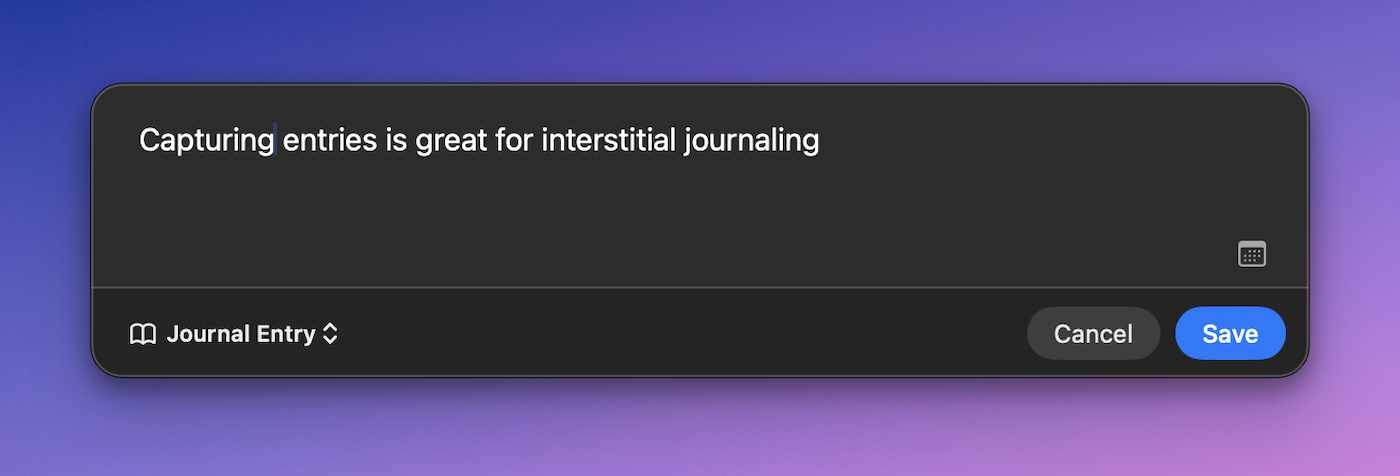
The goal was to make it easier to capture journal entries in the moment instead of waiting until the end of the day when I add my Daily Questions. And it worked incredibly well.
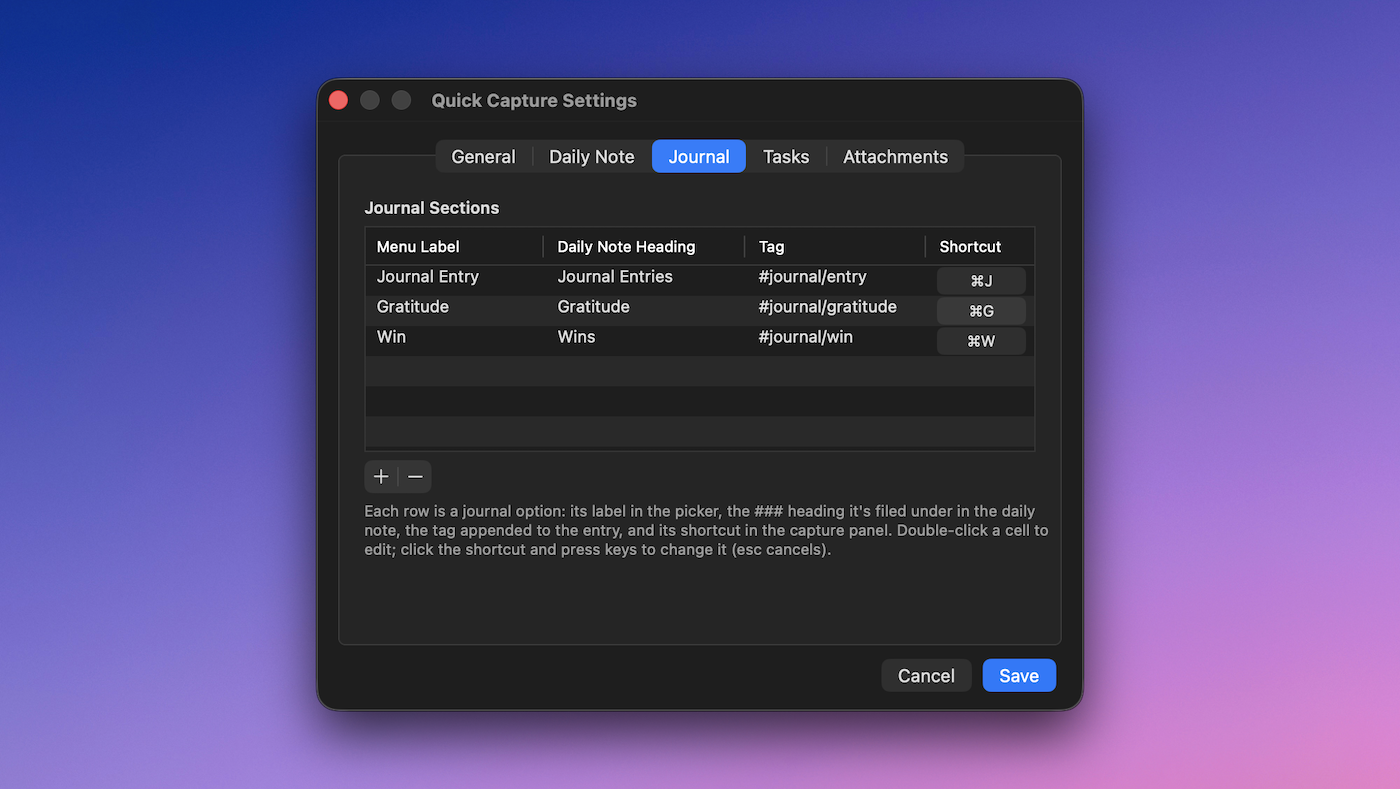
But then I got curious how hard it would be to add or modify these different types of journal entries for others who wanted to use them. And it turns out, it was pretty easy. So I built a settings pane where you can configure the section you want to capture to, the type of journal entry, the tag to append at the end of the line, and the shortcut you use to jump to it in QuickCapture.
By default, anything you capture will be appended to today’s Daily Note. If the Daily Note for that day doesn’t exist, QuickCapture will create it using the naming format and template file it picks up from the plugin settings in your Obsidian vault. But if you want to capture to a different daily note, all you need to do is click the calendar icon and select a new date from the calendar picker, just like using the Calendar plugin inside of Obsidian itself.
It Works for Tasks, Too
My first experience with quick capture was back in the day while I was still using OmniFocus as my task manager. Now just about every task manager has their own version of a quick capture tool, so the next thing I added was the ability to capture tasks using the same formatting as the excellent Obsidian Tasks plugin.
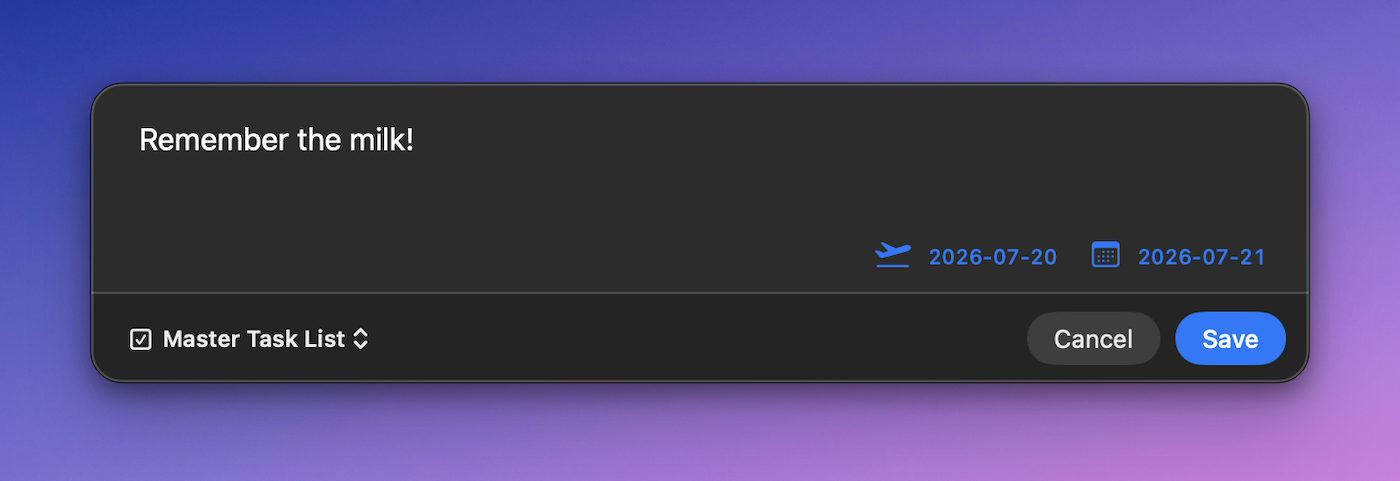
Just hit ⌘-T to switch to task capture mode, and whatever you capture will be appended to the note set as your master task list in the QuickCapture settings. You can click on the icons in the lower right of the text box to add either a Start Date (when the task becomes available) or a Due Date (when the task must be done by), and the dates will be added using the date formatting for your Daily Notes.
Capture Straight to an Inbox
In addition to capturing individual bullets to your Daily Note, you can also capture text directly to an Inbox folder to process later. When you capture to the inbox, the first line becomes the title of the note and any additional text below that gets added to the note itself.
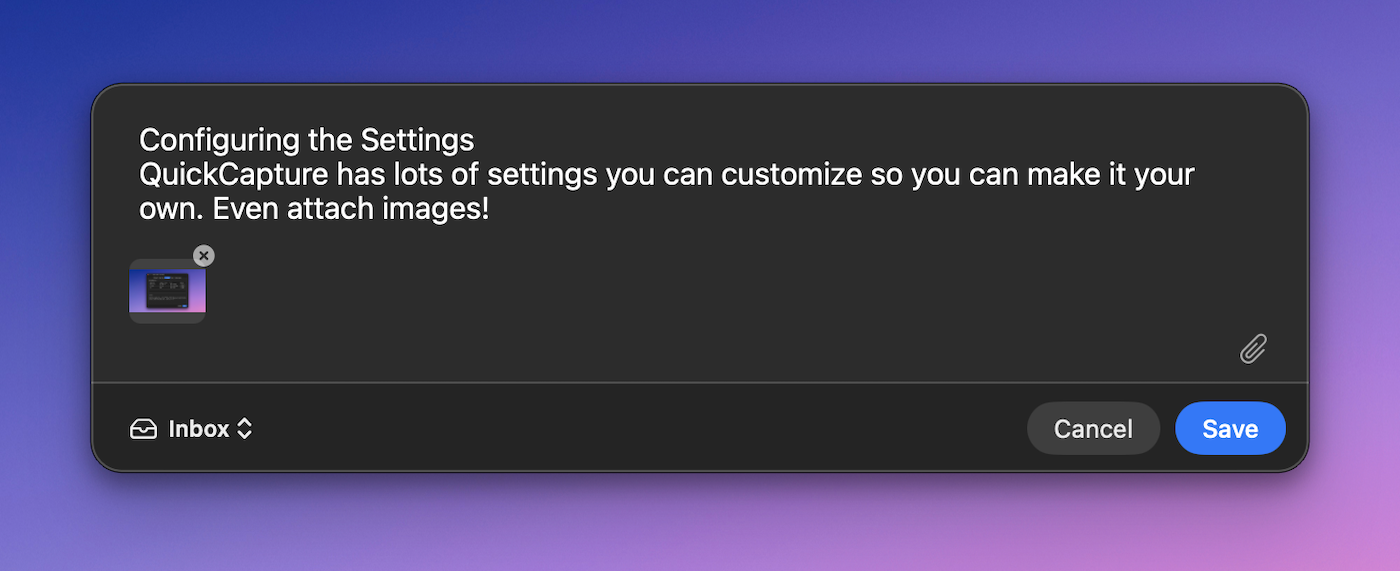
You can even capture images and attachments, and they will automatically be copied into the default media folder set in the Obsidian settings. By default, any attachments will be linked, but you can choose to embed them instead in the QuickCapture settings.
If you want to give QuickCapture a spin, you can download it at this link. Eventually I’ll have a proper page for this, but as a newsletter subscriber you get access before the general public does. (Sorry, it's macOS only at this point.)
The Bottom Line: You Don’t Have to Wait for Someone Else to Build the Tool You Need
A year ago, this newsletter would have ended differently. I would have shared the Craft video, said “hopefully someone builds this for Obsidian someday,” and moved on.
Instead, I built it in a day and a half.
Not because I’m a developer (I’m not!), but because the barrier between wishing a tool existed and having that tool has never been lower. If you can clearly describe the job to be done, you can probably build the thing that does it.
The hard part is knowing exactly what you want the tool to do. And the more you pay attention to your workflow and notice the friction, the more effectively you can fix it.


