


Have you ever sat down to write something in Obsidian and just ended up staring at the blinking cursor? There's actually a name for this: Blank Page Syndrome. And it completely zaps your creative energy.
One of the best ways to overcome this is to use a template (a pre-built note or file that follows a specific pattern) to help you get unstuck and start moving that cursor across the page.
But templates are much more than just snippets or text expansion. They can also be productivity-forcing functions and make sure you capture data the right way every time.
In this post, I'm going to show you how to use templates in a variety of ways inside your Obsidian vault. I'll explain how date tokens can be used with your note templates, show you how template variables work with QuickAdd, and share some practical examples that you can use today to give your vault an instant upgrade.
Want to download the templates I share in this post? Grab my free Obsidian Starter Vault, which has ALL my personal template files + a bunch of tips and resources to help you get more out of your notes and ideas.
Why Use Templates?
Templates are basically text snippets that you can insert into your notes, and using them gives you a couple of benefits:
- It makes sure that your formatting is consistent and that things always get created the same way. If I manually type something like a property name or a tag every time I add it, there's a chance I may mistype it, messing up the data in my vault and making it impossible to find in the future. But when you use a template, the text gets created exactly the same way every single time, which eliminates the possibility of human error. As long as it's correct in the template file, it will always be correct when you use it in your notes.
- You don't have to start from scratch when creating something new. By using a template, you can make the task significantly easier. You can even use templates to kickstart the creative process. For example, my newsletter follows a very specific format that I've refined over the years that I've been sending it. I have a newsletter template that I use in Obsidian when I start to write, and having the sections in the appropriate places eliminates some of the resistance that typically comes with sitting down at the keyboard.
- It saves you a lot of time. Which is why any time you find yourself typing the same thing over and over, you should consider turning that manual process into a template. The principle I use for this is the 3 Times Rule. If I find myself typing the same thing three separate times, that's my cue to spend the extra time to create a template I can use in the future. The same principle applies more broadly to automation, where if you find yourself doing the same thing over and over, that's a great opportunity to automate the process. Templates are essentially just a very basic form of automation, and the fact that Obsidian sits on top of a folder full of markdown files means that templates are actually very powerful and can do quite a bit to supercharge your Obsidian workflows if you understand how they work.
The Basics: Native Templates
Let's start at the beginning by talking first about the built-in Templates core plugin, which lets you insert pre-defined snippets of text into your active note at the current cursor location. You can toggle this on by going to Settings → Core Plugins and toggling on the Templates option.
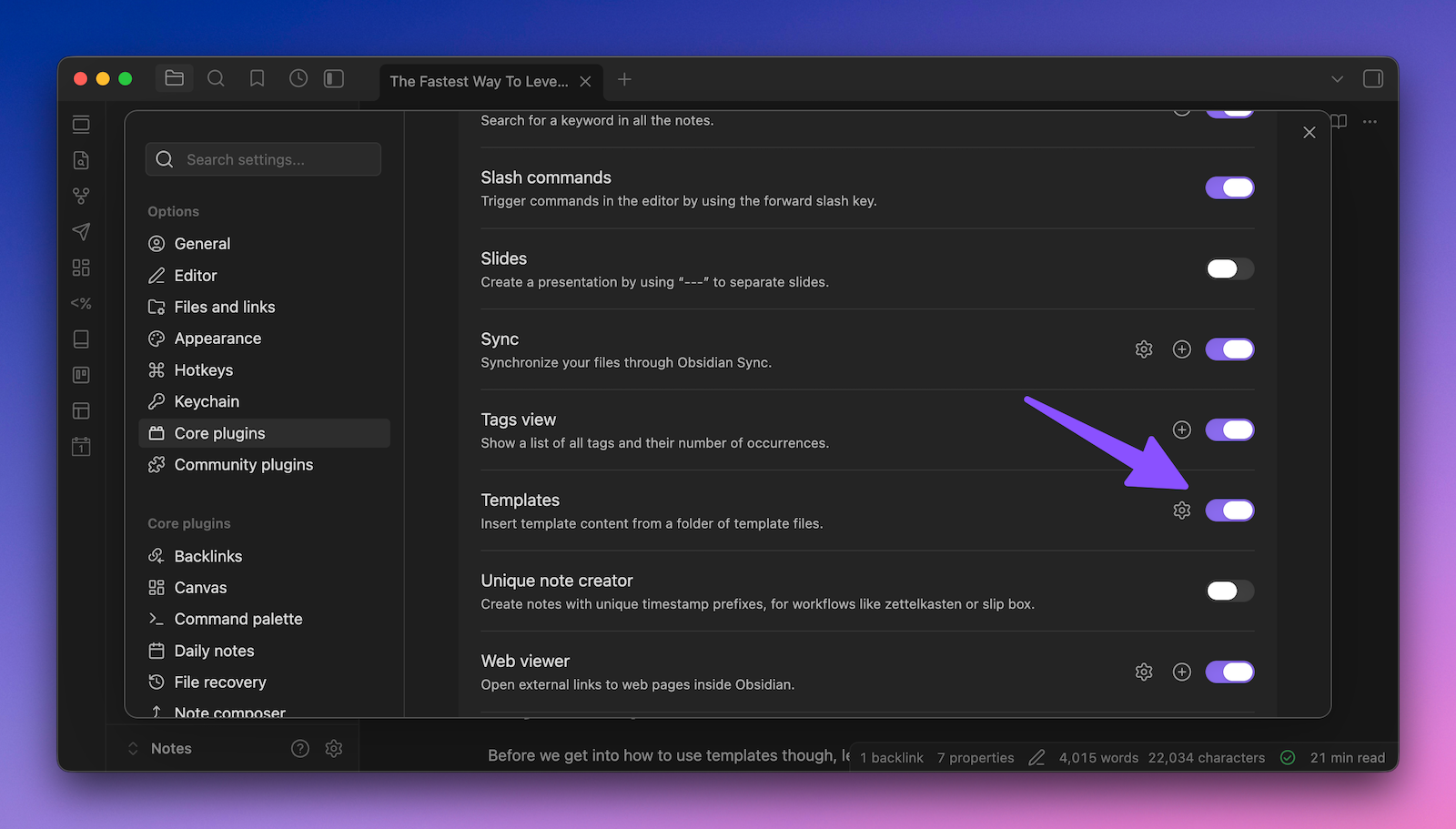
There are some simple settings for this core plugin that you can configure, the first of which is the location for your template files.
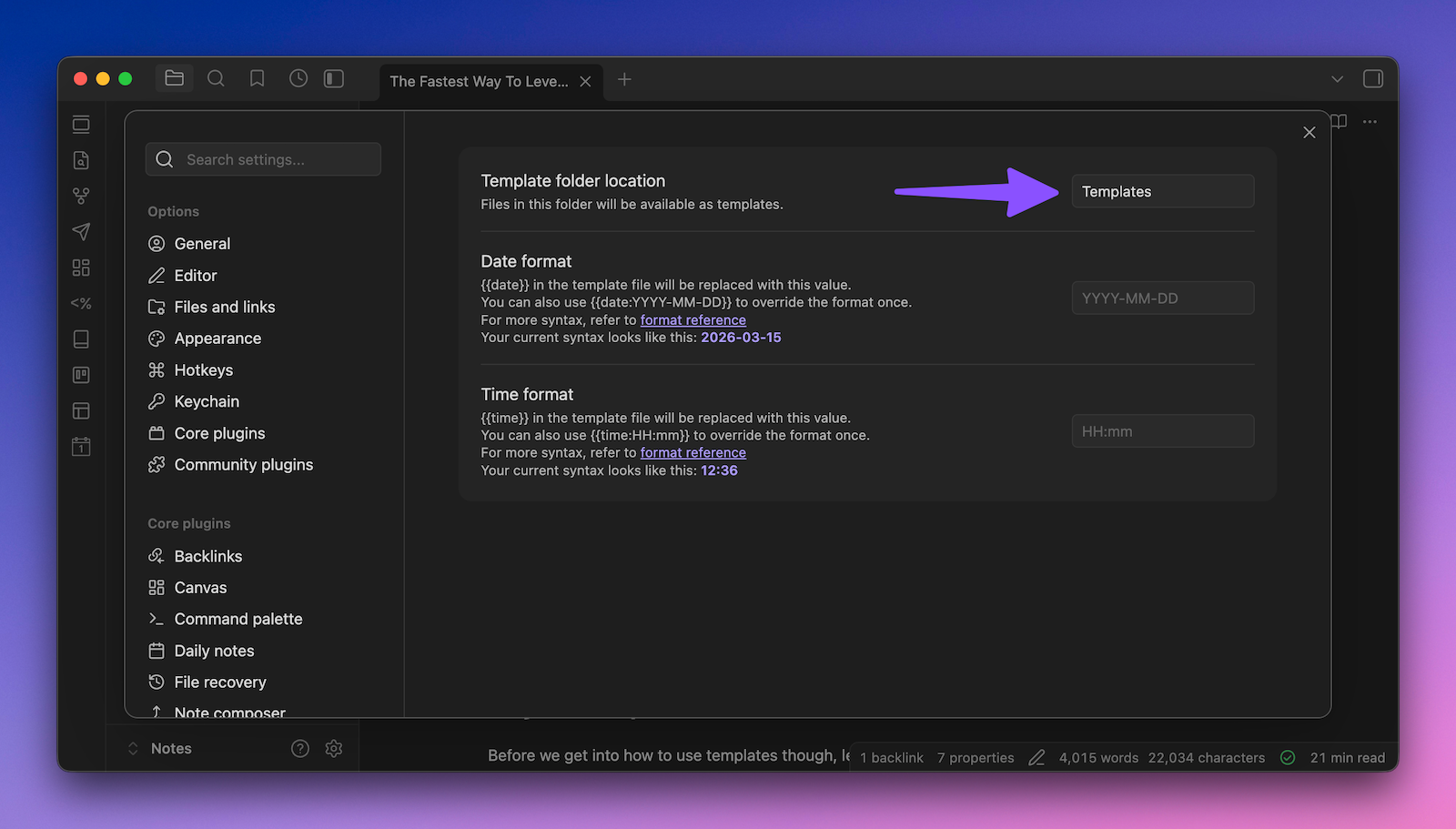
I recommend you keep all your templates inside a Templates folder inside the root folder of your Obsidian vault, but you can keep them somewhere else if you really want. It's just important for this plugin that you set the templates folder in the settings here so that when you go to apply a template in Obsidian, it knows where to look.
You can also configure the Date format, which is what will be used when you use the date placeholder by using {{date}}. By default, this is set to YYYY-MM-DD, and while you can change this to something else if you really want, I generally recommend you keep this as is unless you have a good reason to change it.
The same thing applies to the Time format option, which configures how the time gets displayed when you use {{time}}. By default, the time format is HH:MM, and again I recommend you leave this unless you really have a reason to change it. If you do want to change it, you can see the options available by clicking on the format reference link.
Once the Templates core plugin is configured, you can start to use it to add templates to your notes. Just open up a note, invoke the command palette with ⌘-P on Mac (or ⌃-P on Windows), and select the Templates: Insert Template command.
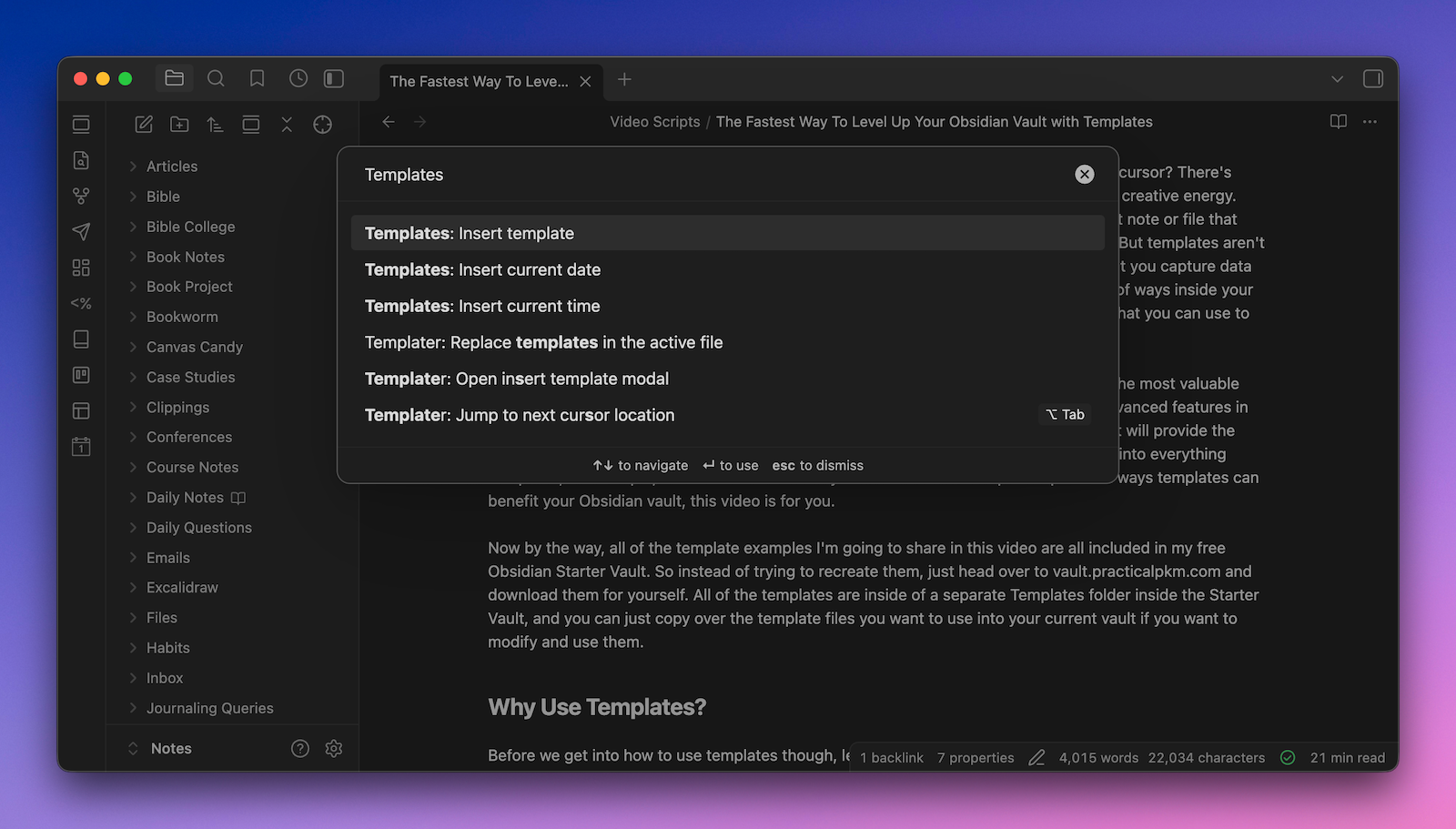
This will open up a list of templates from the files that are in the folder you designated in the settings. To insert a template, just select it from the list and hit the Enter key.
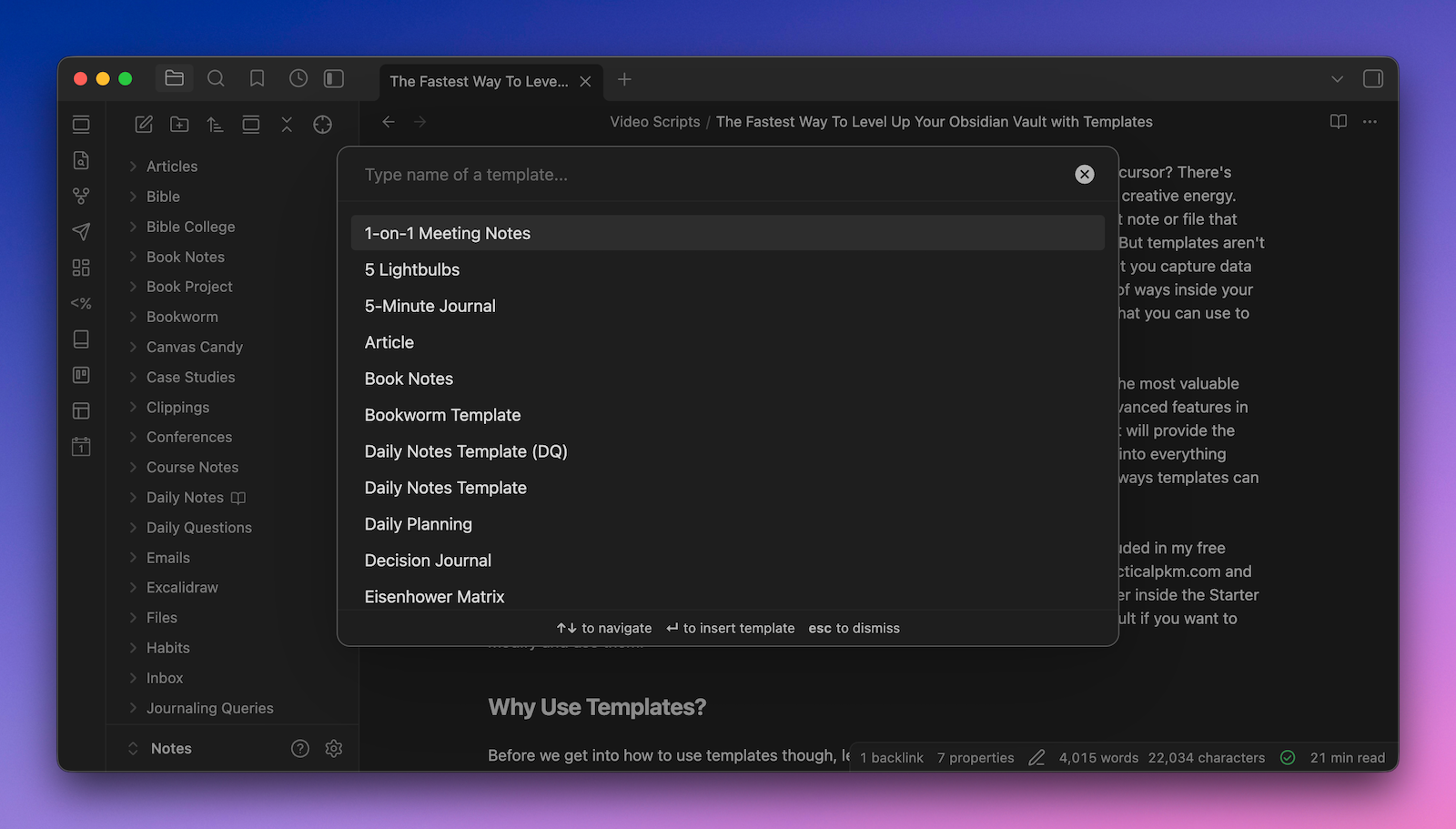
The template will be applied at the current cursor location, and any date or time tokens will be replaced with the date and time according to the format you set in the settings.
You can also just insert the date or time in a note by selecting the commands for Insert Current Date or Insert Current Time respectively from the Command Palette, but I almost never use these and prefer to apply templates when I create notes instead.
Daily Notes Template
There are a couple of ways to apply templates when you create new notes in your vault, but one of the most common ways is when creating a new Daily Note. To use this, you must have the Daily Notes core plugin toggled on. Once you do, you can go to the Daily Notes plugin settings and set the Template File Location for the specific template you want to use when a new Daily Note gets created.
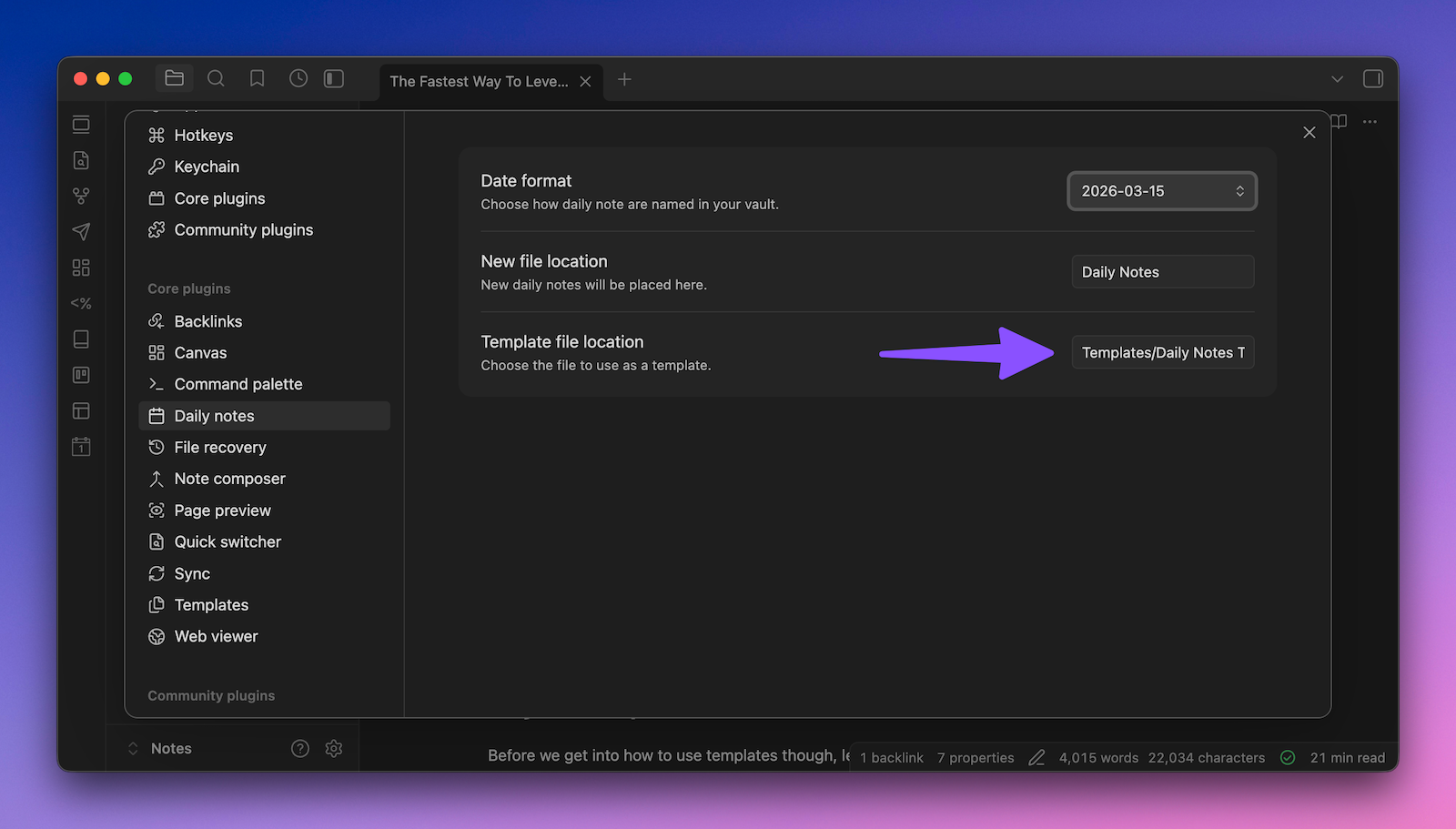
My Daily Note template is fairly complex with a bunch of different sections that get formatted using date variables, including:
- A section for my daily Bible Readings
- The tasks that are due today
- Some daily affirmations
- Habits that I'm tracking
- An On This Day Bases view which shows notes from previous years
- A Memento Mori section, which calculates how much of my life has been spent based on the average 80-year life span
The important thing for this post, though, is to realize that this template will return a bunch of errors if you just view it using Live Preview or Reading Mode:
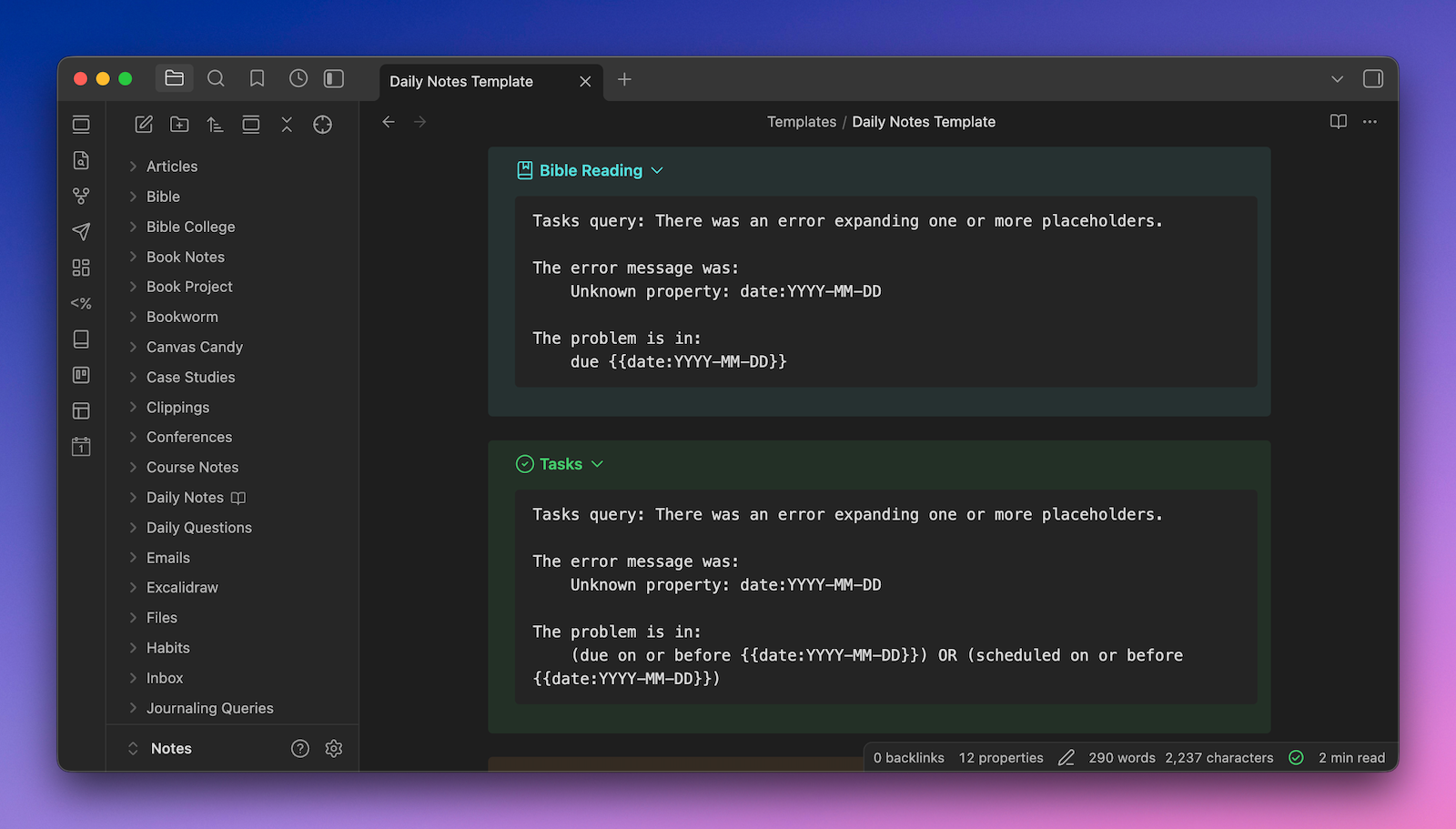
This is because Obsidian doesn't know how to process those date tokens as formatted when you just view the note as is, but the template does get applied correctly when you create a new Daily Note.
Properties
One other thing that's worth calling out while we're talking about Daily Notes is that the Properties at the top of the note are actually just plain text. If you switch to Source Mode, you'll see that these exist as plain text at the top of the note in between two sets of three dashes:
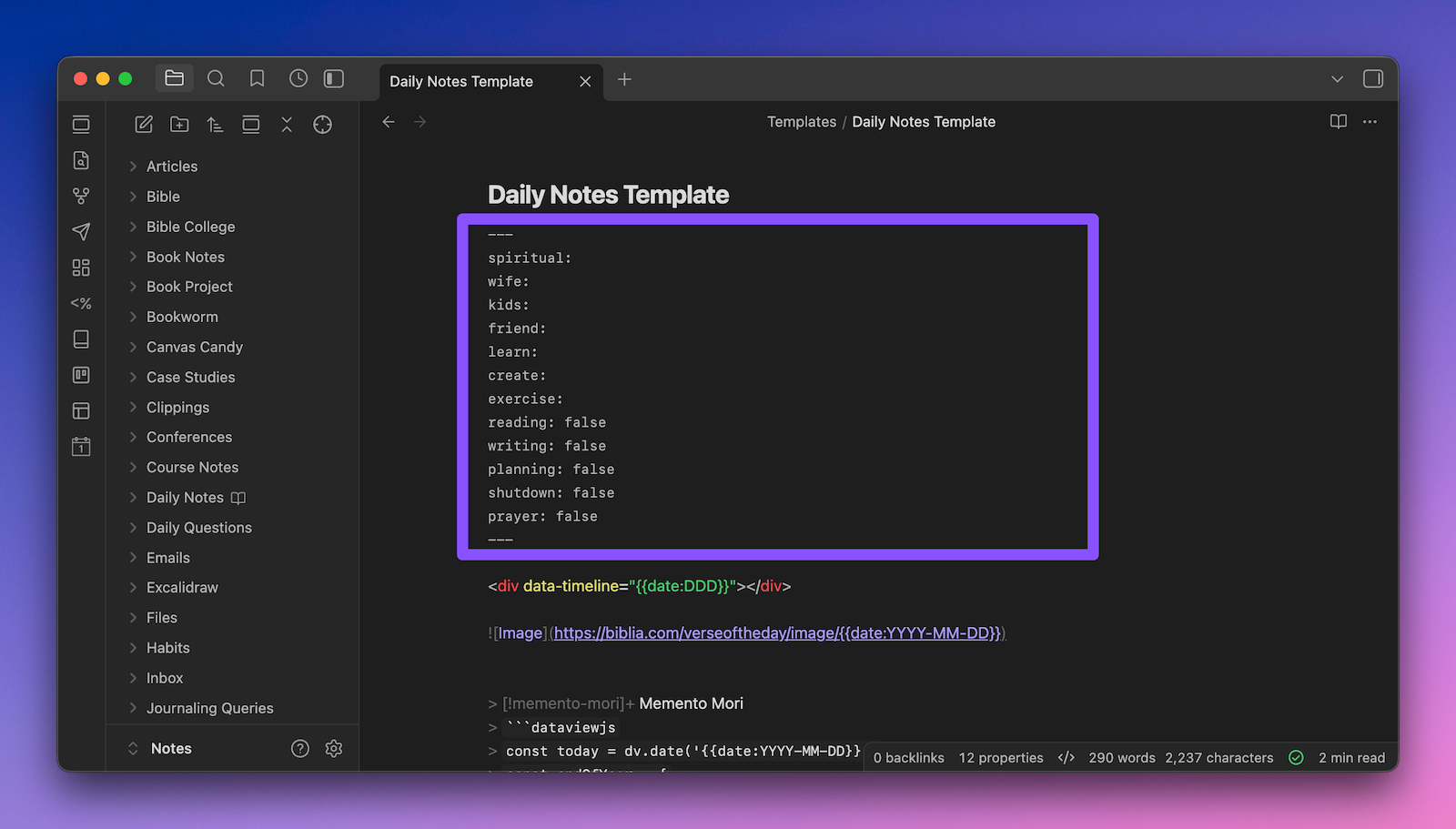
And if you are creating a new note from scratch, templates are a great way to make sure that the same metadata gets applied in the same way to every new note. By using a template for my Daily Note, I can make sure that these properties get added and ensure that they are always formatted consistently.
But you can also apply a template to an existing note, and Obsidian will actually merge any properties that exist in your note with the properties in the template you just applied.
This creates some interesting possibilities for how you might choose to structure your template files. For example, a few people in my The Library (my private PKM community) actually have a bunch of template files which are just Property metadata. This allows them to create a new note and apply multiple template files, making it easy to add the properties you want to the active note.
If you have a ton of metadata you use in your notes, you might want to take this approach as well. Just keep in mind that if there is any "normal" text in the template file that is not property metadata, it doesn't get merged and instead is placed in the active note where you ran the Insert Template command.
Folder Templates
In addition to Daily Notes, you can also apply the same type of template automation with other folders in your Obsidian vault using the Templater community plugin.
Templater gives you the ability to set up Folder Templates, which automatically apply a specific template when a new note gets created inside of the target folder.
To set this up, go to the settings for the Templater plugin and toggle on the Trigger Templater on File Creation option:
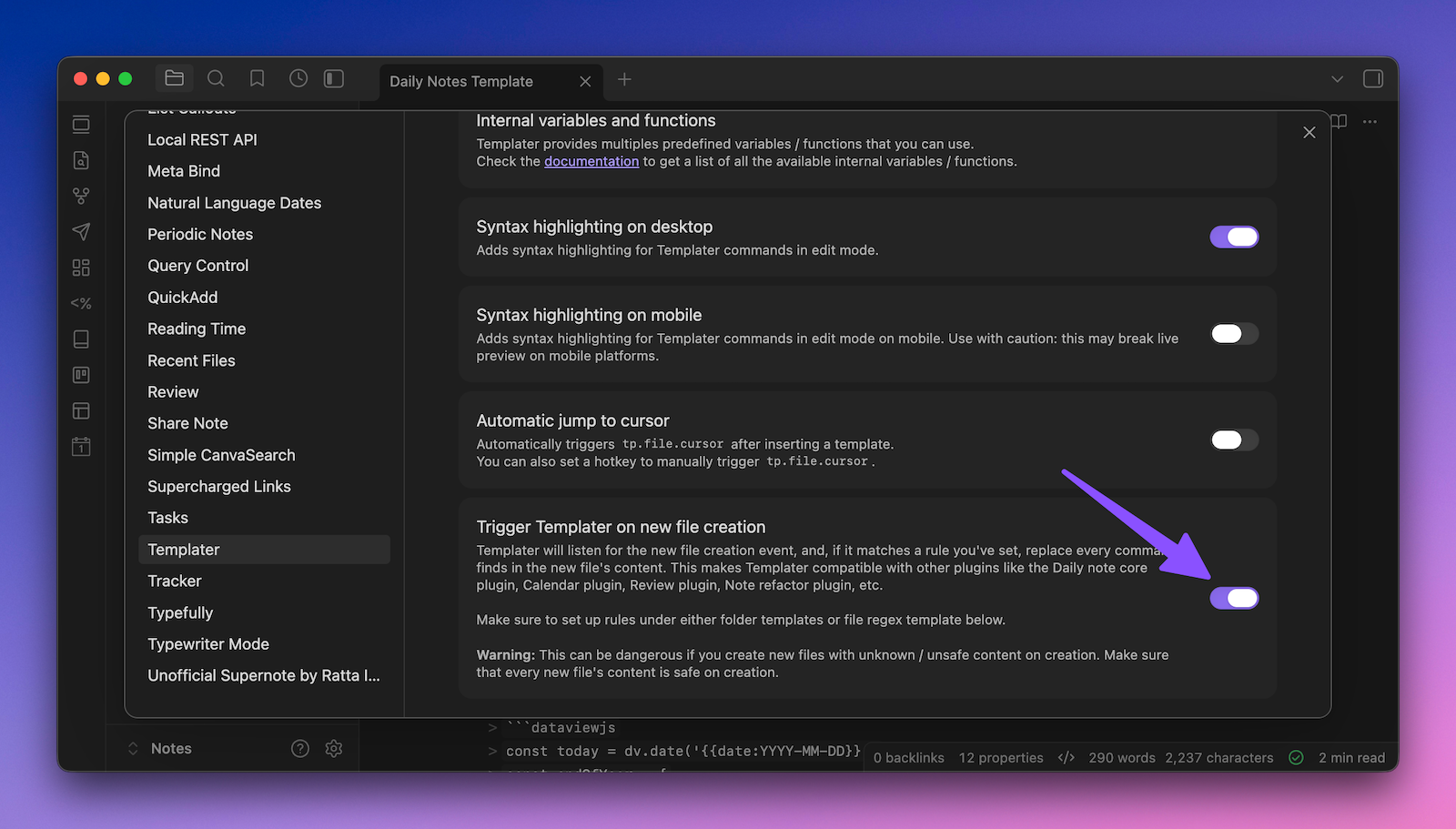
This will create a Folder Templates section in the Settings screen, and then toggle on Enable Folder Templates:
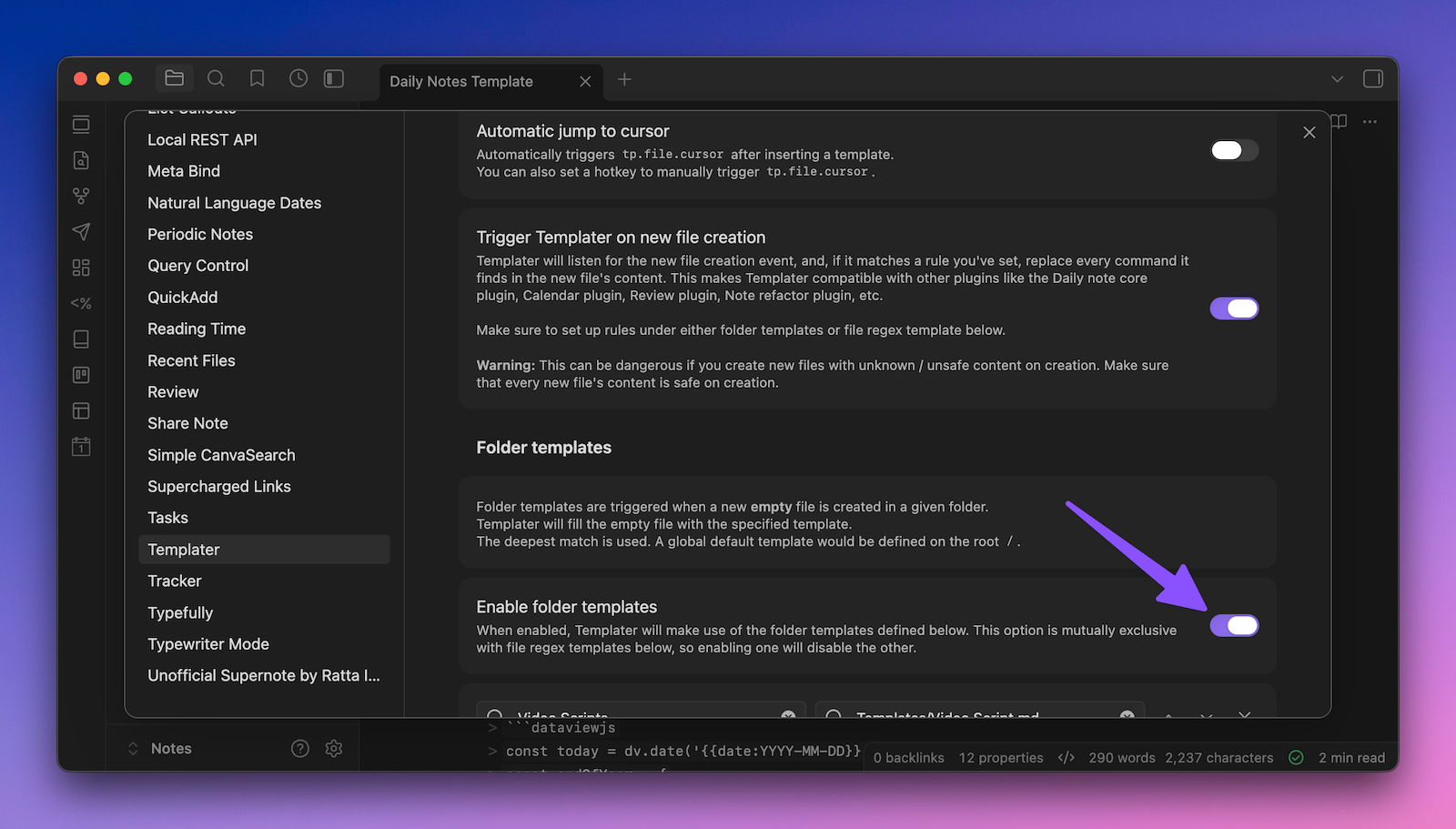
This will allow Templater to check and see if there's a folder template set whenever a new note is created. Next, click the Add New Folder Template option to create a new folder template.
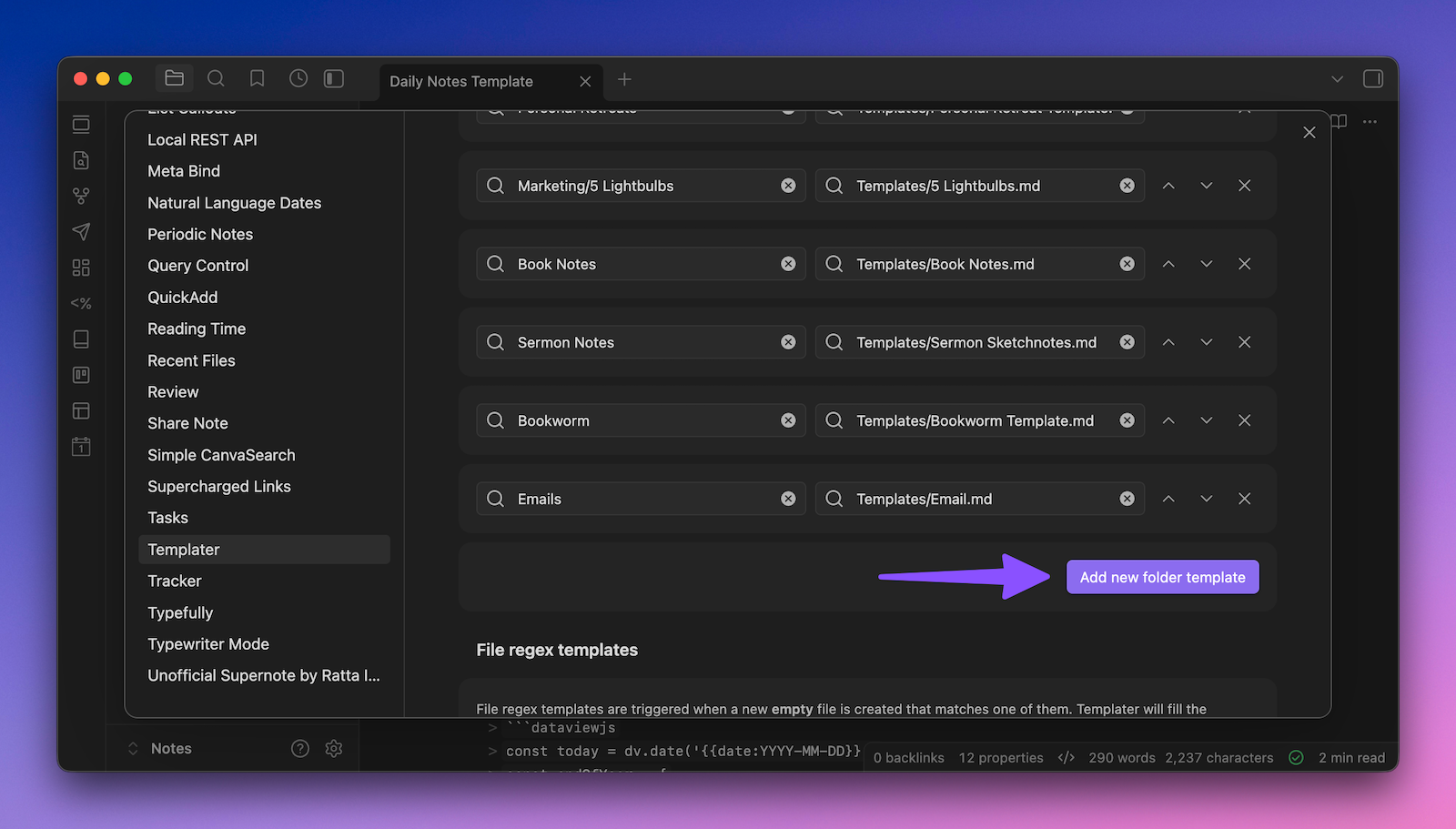
This will create a folder template, but you still need to configure it. First, set the folder you want to apply the folder template to. This is the folder that you want Templater to watch.
Next, you need to pick the specific template file you want to get applied when a new note gets created inside that folder.
In my vault, I have several of these set up already. For example, if I create a new note in the Video Scripts folder, my Video Script template file gets applied to the note.
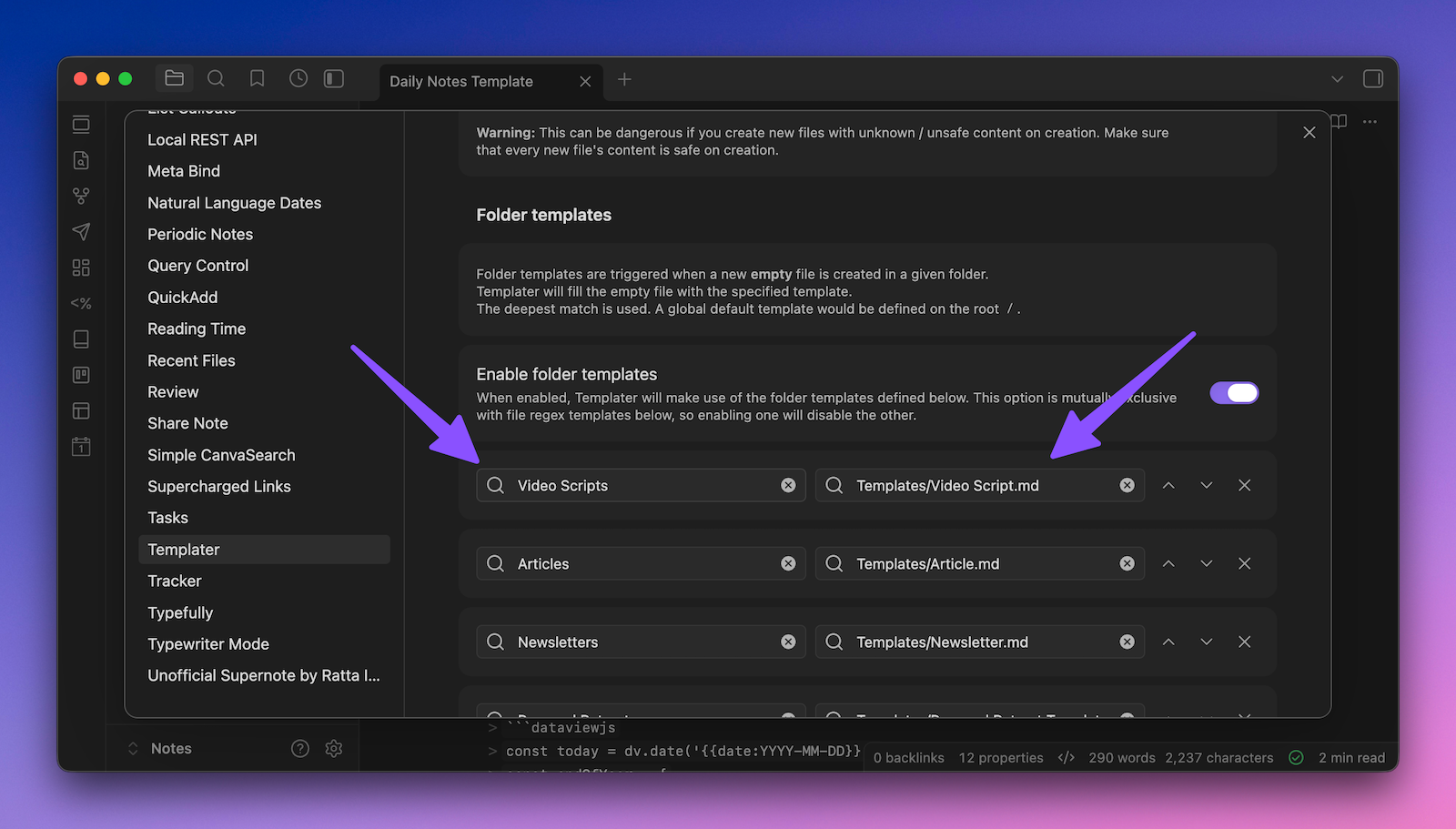
Same thing with the notes that get created inside the Newsletters folder, and articles that get created inside the Articles folder. Each of these template files is unique, having specific metadata that I use for that type of note, and separate sections in the note itself where appropriate.
Another example of a folder template that I have here is my Personal Retreat template, which gets applied every time I create a new note inside of my Personal Retreats folder.
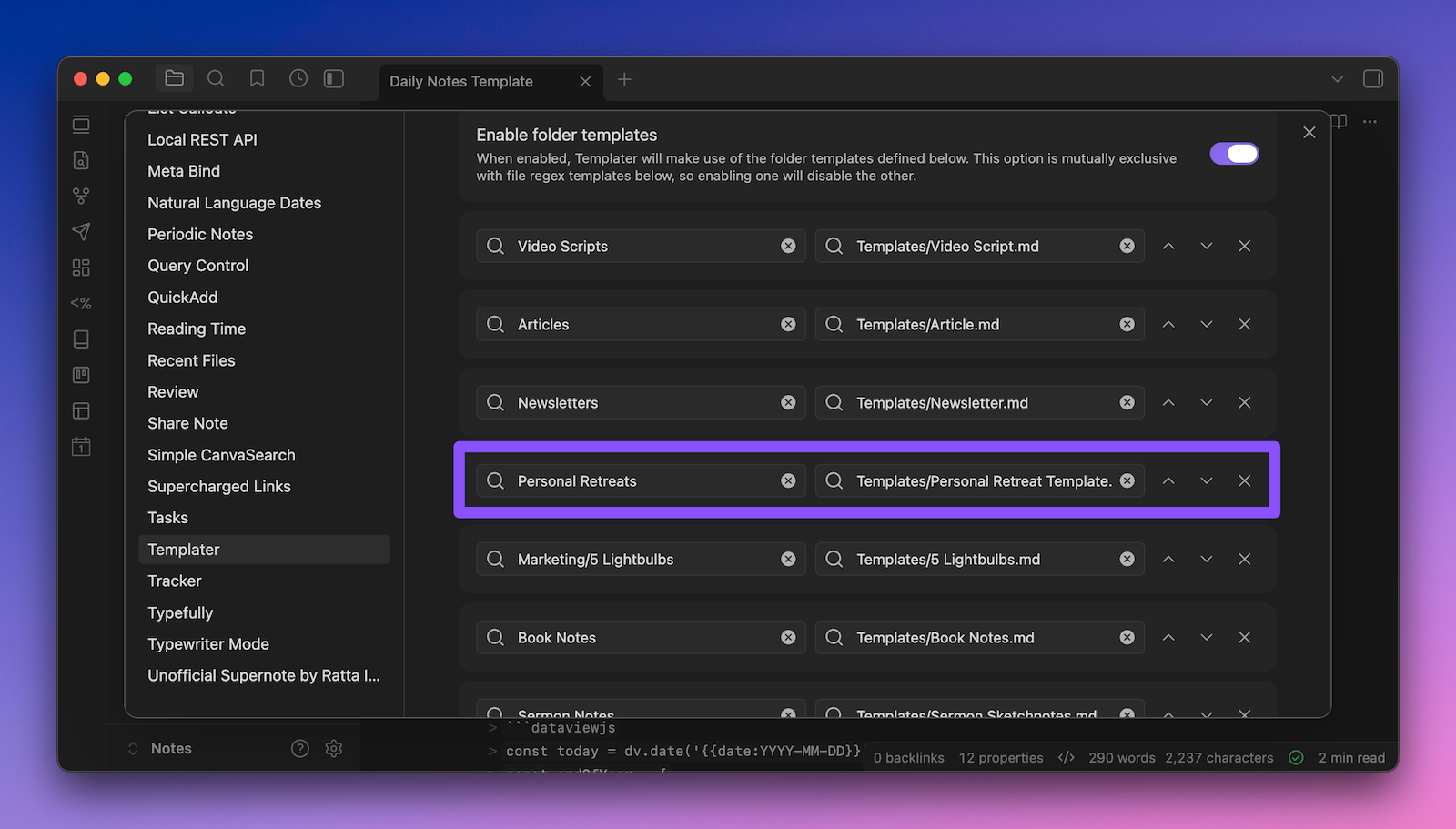
This is also connected to the Periodic Notes plugin, which allows me to set specific folder locations and template files for other types of periodic notes (i.e., weekly notes, monthly notes, quarterly notes, and yearly notes). So in this case, I have my quarterly notes set up to be created in the Personal Retreats folder and to use the Personal Retreat template file specifically:
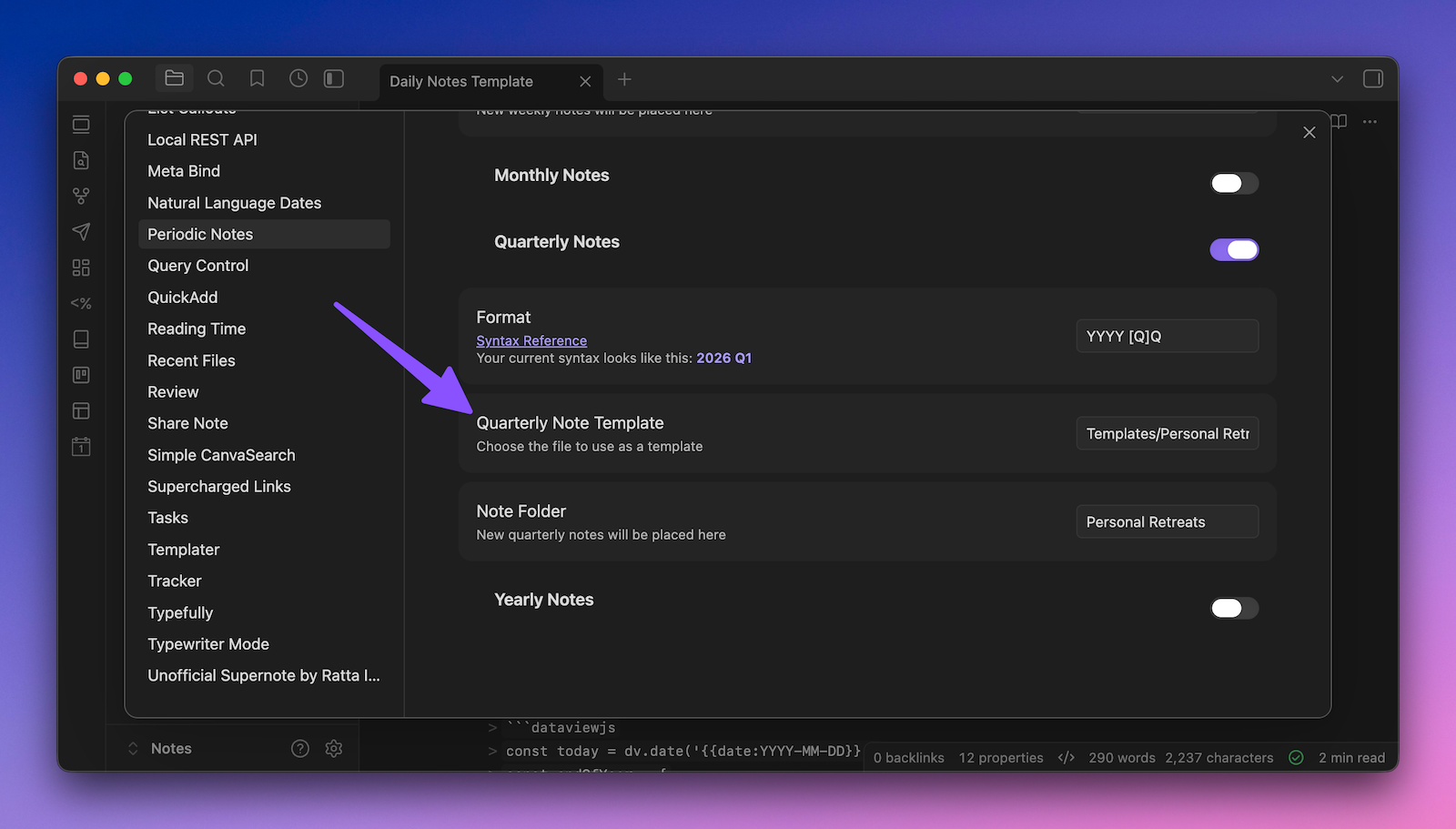
This means my folder template is actually just a fallback in case I create the new quarterly note in the folder by hand instead of via the command in the Command Palette that the plugin enables.
Same thing with the Book Notes template, which actually gets triggered 99% of the time via the Book Search plugin as part of my book note-taking workflow.
Now you might be wondering: why am I even mentioning these if I don't use the folder templates for these specific templates most of the time?
Because the goal is to make sure things get created the same way every single time. By setting up folder templates, I have a safety net that makes sure that new notes get the right way. It may not seem like a big deal, but this actually hits on an important point when it comes to automation: you want to make things as bulletproof as possible. Setting up folder templates is a pretty easy way to help make sure nothing falls through the cracks.
Using Template Variables with QuickAdd
Template variables can be a little bit tricky, but they are really powerful. For this example, I want to share some examples from my People Note workflow.
First, there's a template variable with {{VALUE:TAG}}:
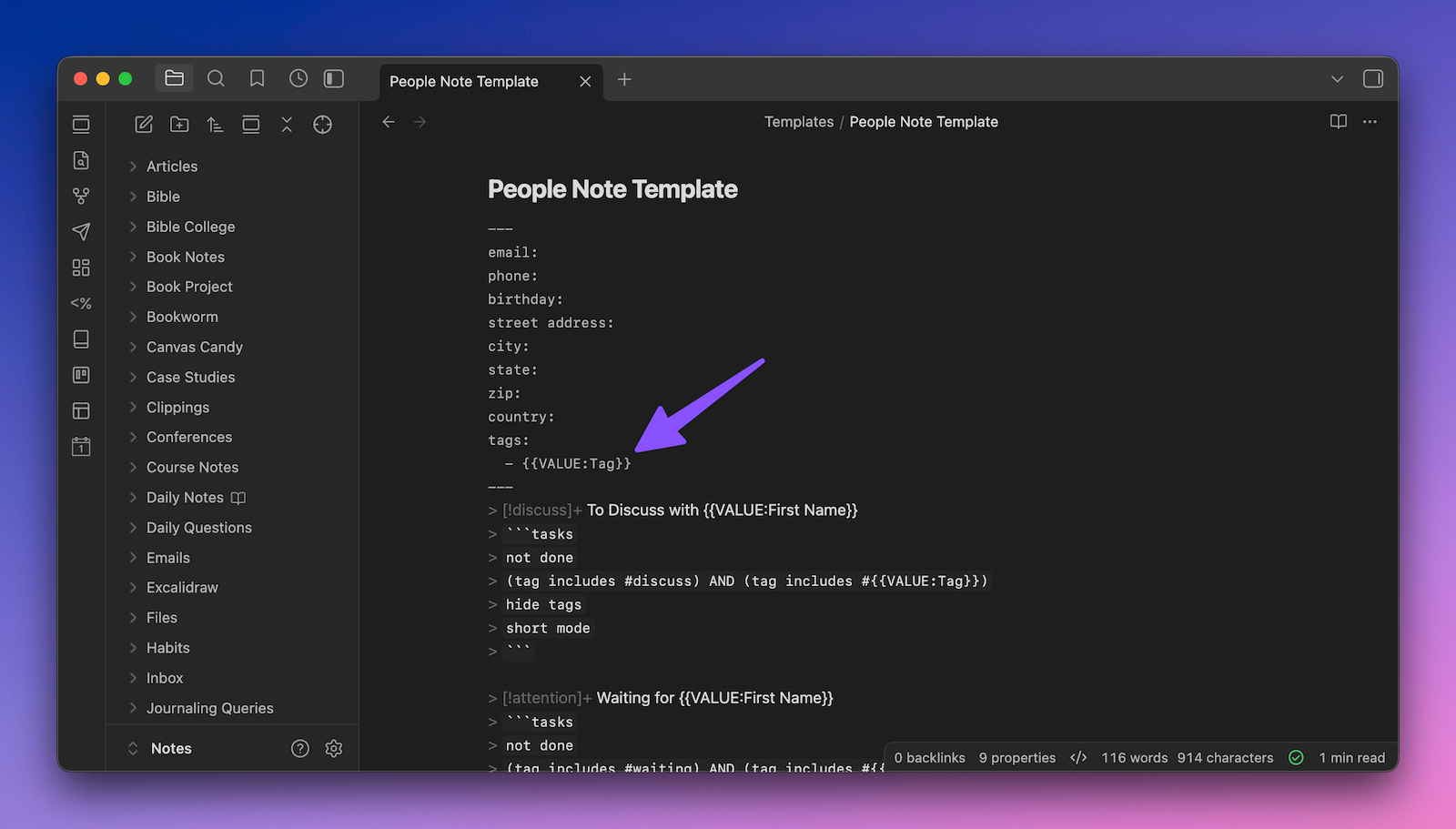
Now, if you just add this template to a new note using the Templates core plugin, as I covered earlier, it will just actually just add this exact text to your new note. But when you create a note via a QuickAdd command, it will ask for the tag via a modal window when the template gets applied correctly:
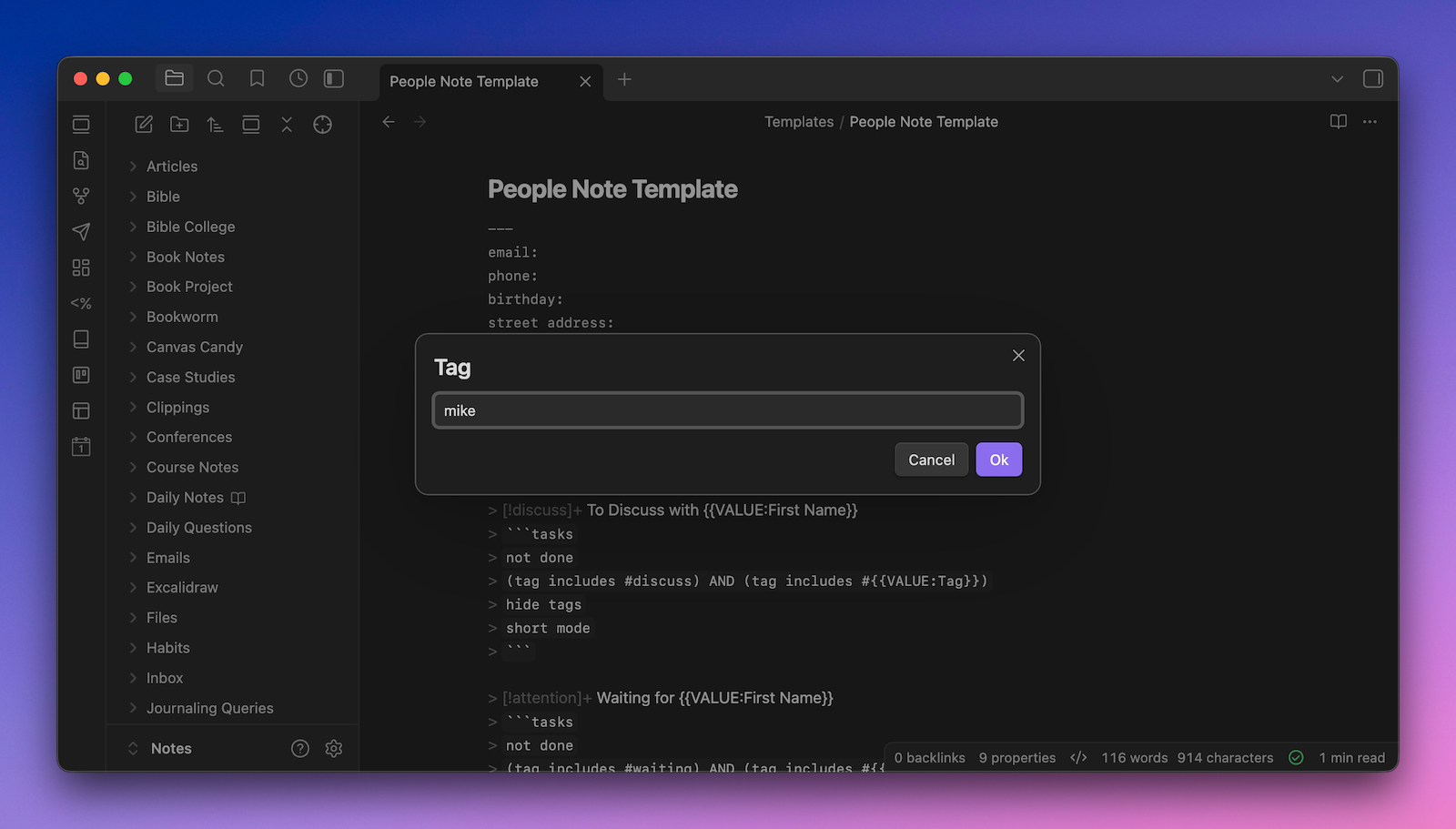
There are two other tokens in this template file, which are {{VALUE:FIRST NAME}} and {{VALUE:LAST NAME}}. These will ask for the first and last name of the person we are creating the note for once you run the QuickAdd command, respectively.
Once you have the template set up, go into the QuickAdd Settings and configure a macro to use the template file when creating a new note. Type the name of the macro, select the Template option, and click the Add Choice button.
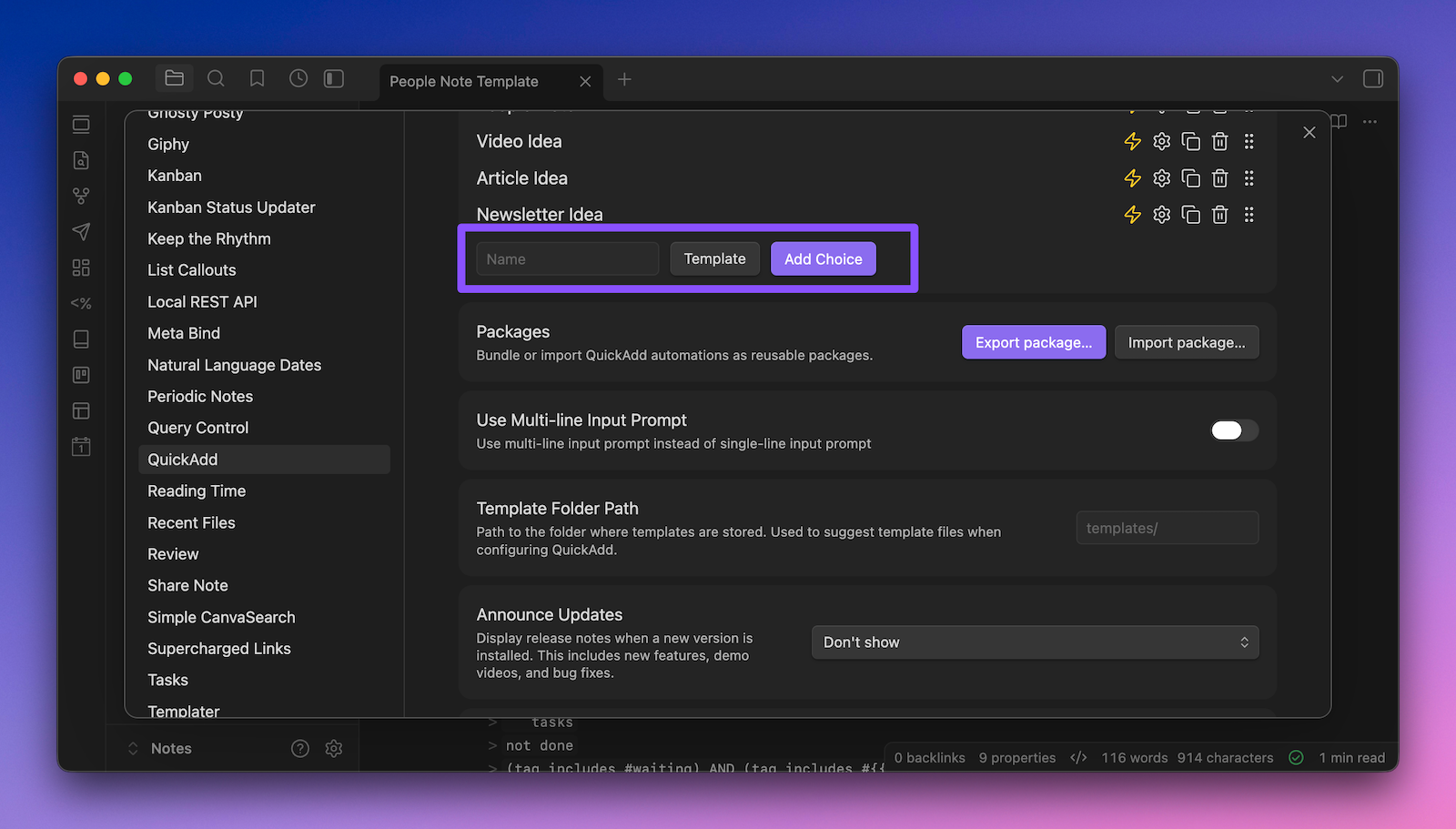
You'll also want to click the lightning bolt icon to make sure you can run this command right from the Command Palette.
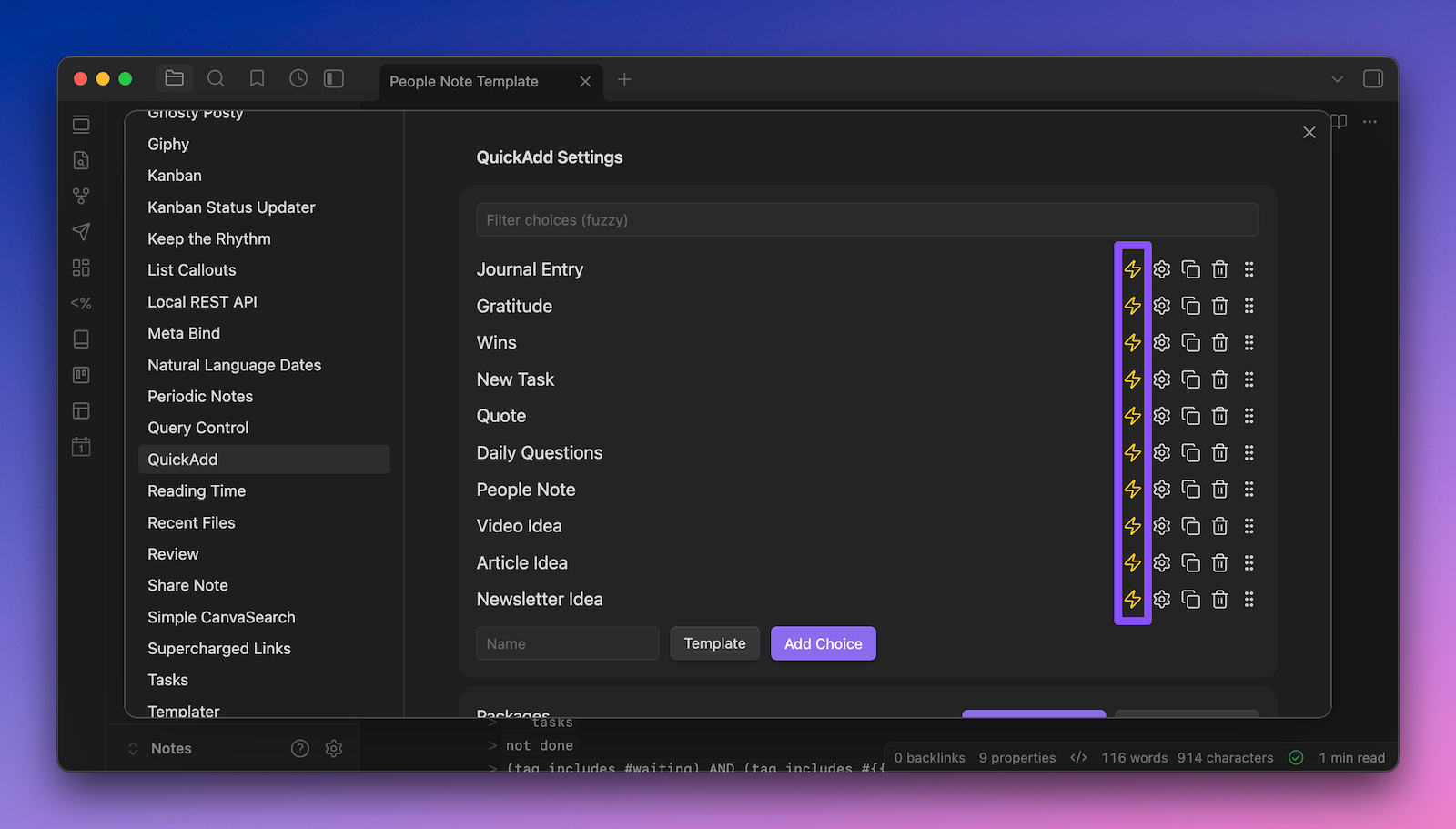
You can use these variables in other places in the QuickAdd macro setup as well. For example, in my People Note macro, I have it set to use both the first name and last name variables in the new note title:
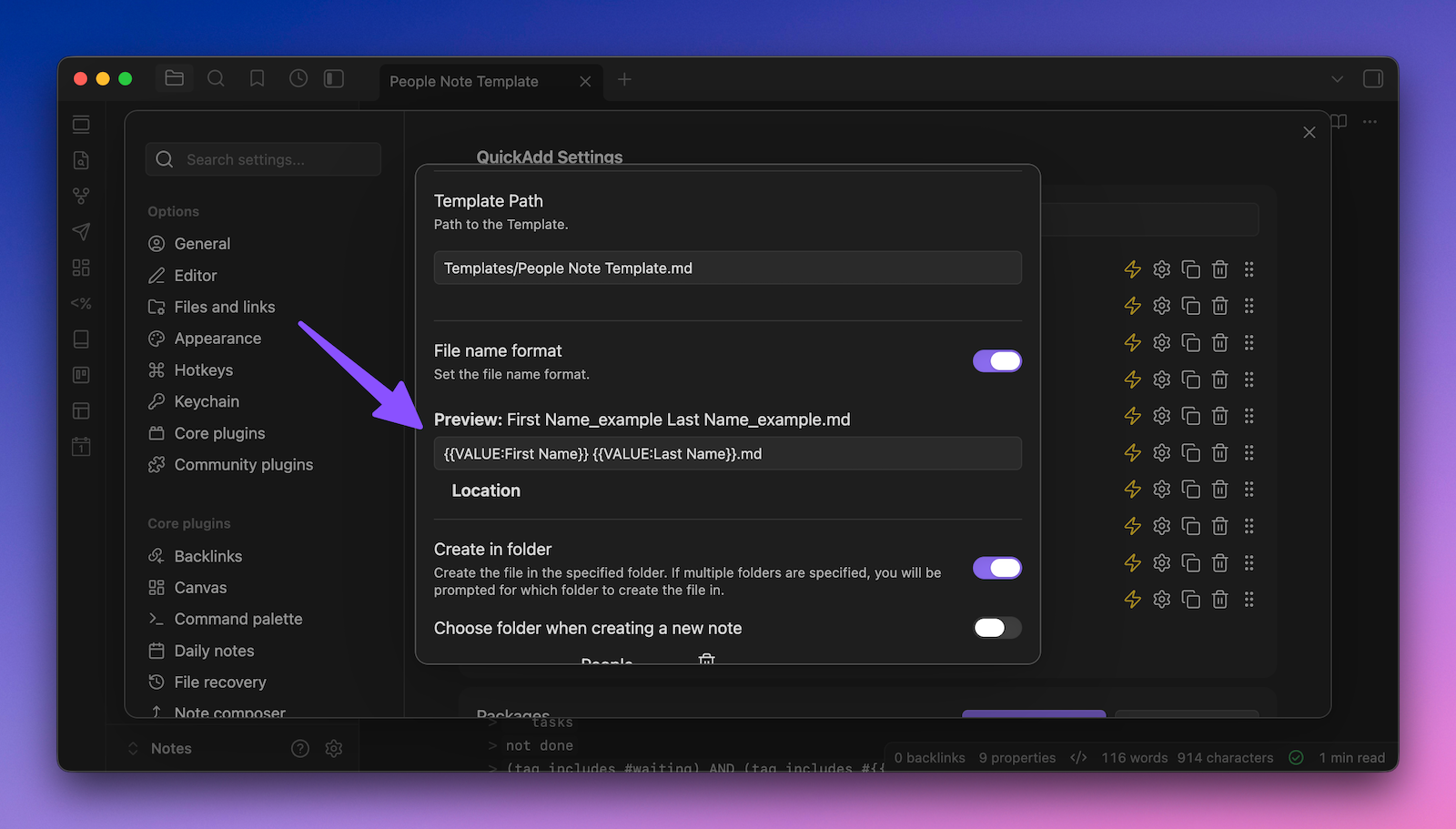
So when I run the QuickAdd: People Note command from the Command Palette, it will ask me for three things:
- The person's first name
- The person's last name
- The tag I want to use for this person
After I enter the values, the macro takes over, creates the note, and all of the queries are created automatically.
Best Practices for Using Templates
Regardless of your experience level with templates, here are some best practices to keep in mind as you use them inside your Obsidian vault.
- Keep all of your templates in a single dedicated Templates folder. I use a folder named Templates in the root of my vault, and I mentioned this when we set up the Templates core plugin, but it's worth repeating. When your templates are scattered all over the place, it's hard to find and manage them. So keep everything in one folder to make sure you know where things are when you need them.
- Follow the 3 Times Rule to identify what templates are worth creating. A lot of people try to create templates for everything they can possibly think of, then forget to use them. The best templates streamline your everyday workflows, so if you find yourself typing the same thing three separate times, that's your signal to stop and create a template. Don't overthink it. Even a simple template with a couple of headings and a few property values can save you a ton of time over the long run.
- Put your properties in your template files instead of typing them manually into your notes. A misspelled property name or tag can completely break your queries and make information in your notes difficult or impossible to find. If the properties are in your template files, they'll get added correctly to your notes every time you add them, and you'll never have to worry about typos messing up your data.
- Set up folder templates as a safety net. I have folder templates set up for things like Book Notes and Personal Retreats, even though I usually trigger those templates through other plugins. The reason is simple: you want to make your system as bulletproof as possible. If, for whatever reason, you create a note manually instead of using the plugin command, a folder template will catch it and make sure the right template still gets applied. It's a small thing, but it's the kind of thing that keeps your vault consistent over time.
- Start simple when creating templates and add complexity only when you actually need it. We started simple with the built-in Templates core plugin, and honestly, that's all a lot of people will ever need. If you're just getting started, don't feel like you need to jump straight to Templater and QuickAdd. Start with the basics, and add complexity only when you hit a wall. There's no reason to over-engineer things before you need to.
- Test your templates after you create them. I showed you how my Daily Note template actually displays a bunch of errors in the raw template file because Obsidian doesn't know how to process those date tokens until the template actually gets applied, and that's normal. But you don't want to create a template, assume it works, and then find out weeks later that something was off. So after you create or update a template, just run it on a test note and make sure everything resolves the way you expect.
- Revisit your templates from time to time. Templates aren't a set-it-and-forget-it thing. As your workflow evolves, your templates should evolve too. Maybe you've added a new property you want to track, or maybe there's a section in a template that you never actually fill out. Every few months, take a few minutes to look through your templates and see if they still match how you're actually using your vault. A little bit of maintenance goes a long way.
Want a done-for-you version of all my template workflows?
That's exactly what I built with LifeHQ, my epic done-for-you Obsidian vault. In addition to the template files themselves, LifeHQ has all the required plugins pre-installed and all the settings pre-configured.
It's a one-time cost of $197 and includes free updates for life. You can check it out by clicking the button below 👇🏼


