


Obsidian ships with a bunch of core plugins, but some are definitely more useful than others. In this post, I'm going to review them all and create a Tier List ranking of all 30 core plugins that ship with the app.
What is a Tier List?
A tier list is basically a subjective ranking of things broken down into groups.
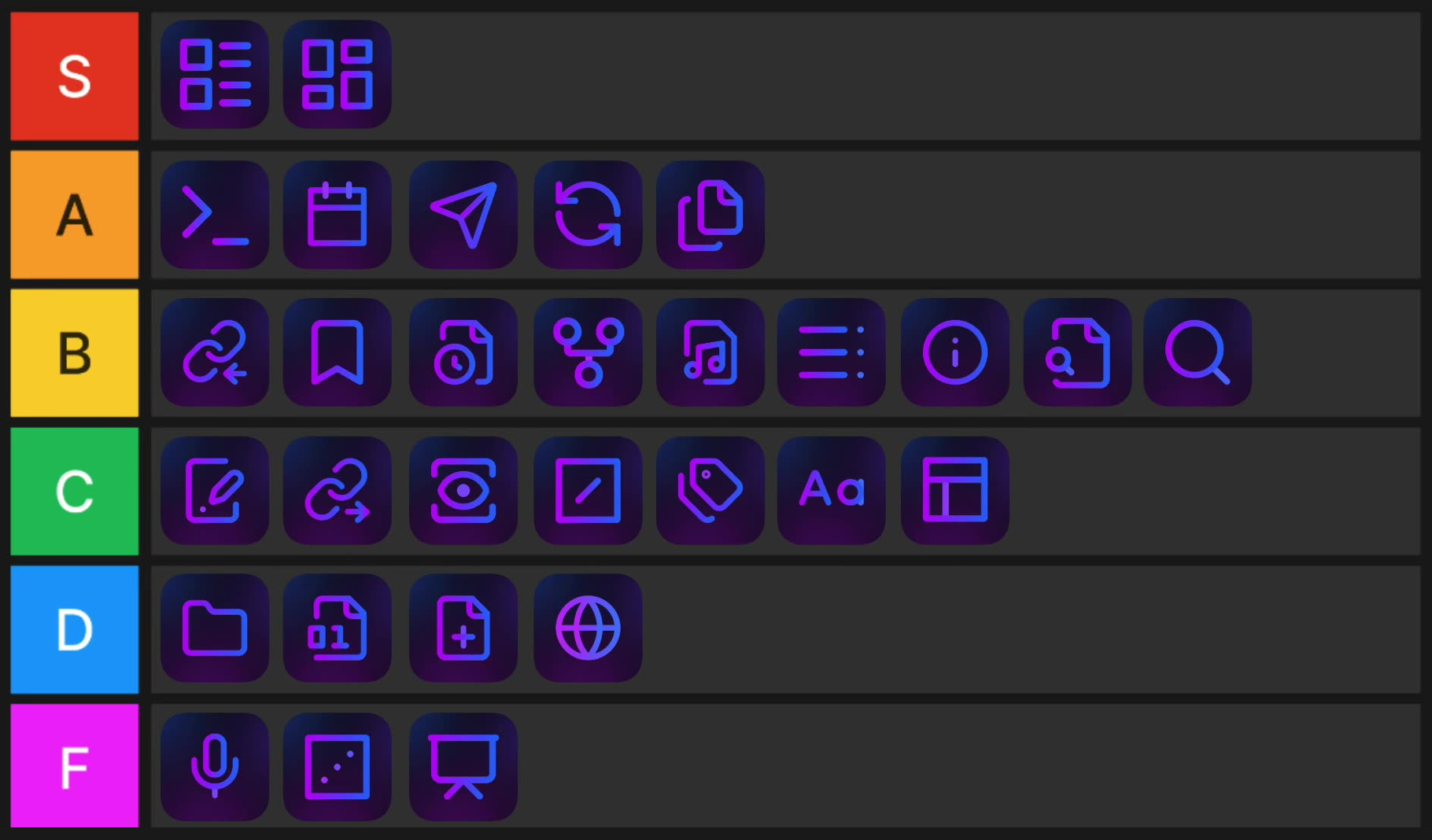
Here are the tiers I'll be using:
- S Tier - This is the highest rank, basically the best of the best. These are the plugins that I can't live without.
- A Tier - These are excellent plugins that are very useful and I use frequently.
- B Tier - These are good plugins that are useful, but I don't use them all the time
- C Tier - These are decent plugins that I could honestly live without, but still find useful occasionally
- D Tier - These are plugins that I don't find much use for
- F Tier - These are plugins that I think are pretty pointless
Keep in mind, these are subjective rankings. Each core plugin definitely has a spot in specific workflow scenarios, but I'm basing my rankings on how useful I think each plugin is for the average Obsidain user who is looking to get more out of their notes and ideas.
For each plugin, I'm going to share:
- What the plugin does
- What I like (or dislike) about it
- Why I ranked it where I did
Let's get into it.
Plugin Rankings
I'm going to consider the plugins in alphabetical order as they appear in the Settings → Core plugins screen.
Audio Recorder
This plugin lets you record audio using the system microphone while using Obsidian. You can start the recording either by clicking the button in the ribbon or by running the Start Recording Audio command via the Command Palette. But aside from the ribbon icon turning a light shade of purple, there is zero indication that the audio is actually recording. Once you click the button to stop or use the Stop Audio Recording command, the file gets automatically embedded into your Obsidian note.
I get why this would be useful when taking notes in meetings or lectures, but my issue with this is that it's very easy to forget you have this running. The audio recordings themselves sound nice, and the player interface is ok, but this is a pretty quick way to fill up space on your device, and if you want to remove the files, you have to go into your attachments folder and manually delete them. If you really want to attach audio files to a note in Obsidian, I highly recommend you use something else, like Whisper Memos, Superwhisper, or some other version of audio + transcription. That way, you get the full text, plus you can always attach a separate audio file to a note in Obsidian later. This plugin is a good idea, but honestly not very useful.
Grade: F Tier
Backlinks
Backlinks are one of the key features of a connected notes app like Obsidian, and this plugin is incredibly useful. When you toggle this plugin on, it adds a Backlinks tab to the right sidebar, which automatically updates based on the active note. This makes it easy to discover connections between your notes, and is a pretty critical PKM feature. You can also add backlinks to the bottom of the note by running the Toggle backlinks in document command, and there is a single setting for this plugin that allows you to automatically show backlinks in new tabs.
Personally, I think this plugin is very useful, though I don't use it all the time. It's a staple Obsidian feature, and everyone should have this one enabled.
Grade: B Tier
Bases
This plugin lets you create database-like views of your notes, a lot like Notion does, but it still just sits on top of a folder full of Markdown files. Bases can be standalone files that have a visual indicator in the File Explorer to indicate the .base file format or embedded in your notes using code blocks, and use different views to edit, sort, and filter files based on their note properties.
There are lots of ways to use Bases. Some of my favorites are to show a list of previous Daily Notes that match the day and month (kinda like the On This Day feature in Day One), and a Card view collection of all my personal book notes (which I actually have available for download here if you're interested).
It's impossible to describe here everything that Bases is capable of, but the short version is that Bases is a game-changer for Obsidian users. It does a lot of what Dataview did, but it does it better and faster.
Grade: S Tier
Bookmarks
This plugin adds a Bookmarks tab in the left sidebar, and works a lot like a bookmarks manager in a web browser, letting you quickly access parts of your vault by creating links to them and storing them in this tab. There are several types of things you can bookmark, including notes, headers, folders, search terms, graph views, and even specific blocks. You can create folders or groups for your bookmarks to keep them organized, and clicking on a Bookmark instantly takes you to that spot in your vault.
This is a fairly simple plugin, but it's very useful. If you have specific things in Obsidian you tend to look at frequently, it's worth enabling this plugin.
Grade: B Tier
Canvas
Like the Bases plugin, Canvas introduces a new file type to Obsidian that can be seen in the File Explorer when looking at the notes in your vault. A .canvas file is basically an infinite canvas that you can use for visually laying out your notes, attachments, and web pages.
There are a couple of things I love about Canvas. First, the contents of your notes are displayed when you zoom in enough. But you can also embed code blocks in Canvas cards without creating new notes in your vault, which is what I use for all of the dashboards I built into LifeHQ. I have dashboards for habit tracking, my Daily Questions scores, and even a task dashboard that gives me an overview of things that are due this week, this month, unprocessed, etc.
Canvas is a deceptively powerful plugin, but once you understand what it's capable of, it can transform your Obsidian vault. Definitely turn this one on.
Grade: S Tier
Command Palette
This is likely one of the first Obsidian features you learn about, but it also has several features that aren't blatantly obvious, which leads to it being very underrated in my opinion. For example, when you invoke the Command Palette by using ⌘P on Mac or ⌃P on Windows, you get a text box where you can start typing the name of any of the available commands. But you can also type the name of an installed plugin to quickly find what new actions were added, and any hotkeys that are assigned are also visible in this list. As of version 1.8.3, the list of commands shows those most recently used near the top using fuzzy logic, but you can also pin commands in the settings for this plugin so that specific commands always show up at the top. I don't really think this is necessary since the auto-complete helps you filter things pretty quickly, but it can be helpful as a visual reminder.
This might be the plugin I use the most in Obsidian, but it doesn't quite get to the level of Bases or Canvas in terms of new functionality. Still, another essential Obsidian feature you should definitely enable.
Grade: A Tier
Daily Notes
This plugin creates a new note for each day (hence the name "Daily Notes"), and while there are a million ways you can use these Daily Notes, I like to use them primarily for digital journaling. You can create a template file and use date tokens that automatically get rendered in the appropriate format when the Daily Note is created, which lets you do some interesting things with your template file. For example, I have a section embedded in a callout that pulls in my daily Bible readings, logs my completed habits, scores my Daily Questions, shows the tasks that are due, and even displays previous Daily Notes that share the same day and month.
The only thing missing from this is the Calendar view, which I feel should be included out of the box, like it is in NotePlan. But overall, this is a killer plugin that I use every single day. Another essential Obsidian feature.
Grade: A Tier
File Recovery
This is kind of like a built-in backup feature for your vault that lets you roll back recent changes by loading a previous version of a file. In the settings for this plugin, you can set the snapshot interval in minutes and the history length in days, and both of these will significantly impact how much space is eaten up on your device, so you'll want to find the sweet spot here. I use the default 5-minute intervals and seven days of history, and you can load a snapshot to see the changes and rollback as needed.
It's not a true backup solution, so you'll likely want to use another service like BackBlaze to make a real backup of your vault. But it's still a pretty handy plugin, and it might just save your bacon.
Grade: B Tier
Files
This is basically the File Explorer and shows a hierarchical view of all your notes and folders in the left sidebar. All the folders are displayed first, and then all the notes inside your root vault folder are listed below.
Turning this plugin off feels really weird as it removes the ability to navigate your vault hierarchically, but I know a few people who prefer it that way. So if that's you, it's kind of nice that you have the ability to turn that off. Otherwise, this is one that you wouldn't even notice because it's a natural part of how we manage files and folders, and doesn't really add anything new.
Grade: D Tier
Footnotes View
This is a fairly new plugin that shows the footnotes in the right sidebar in addition to the bottom of the active note. This is a pretty simple plugin that solves a pretty big problem for writers who use a lot of footnotes in their writing, making it easy to visualize the footnotes without having to scroll all the way down to the bottom of the note.
It's a useful plugin, especially if you use Obsidian for writing, but it's not exactly life-changing.
Grade: C Tier
Format Converter
This plugin helps you convert imported files from other apps into Obsidian-flavored Markdown. This is most useful when importing notes from another app like Roam Research or Bear, but it can also be useful in updating your notes in Obsidian from the old deprecated property formats into the current versions supported for tags, aliases, and CSS classes. The latter is more useful to me, as I actually don't generally recommend bringing everything over from your previous notes app when getting started with Obsidian. But even if I did, this plugin has limited usefulness as it's something that you really just use once.
I'm not a fan of this one, and only the ability to update from old property formats saves this from the F tier.
Grade: D Tier
Graph View
I'm of two minds on this one, as I love the Local Graph and keep it in the lower half of my right sidebar. This helps me see all of the notes that are linked from or link to the active note, helping me discover new connections as I navigate my notes. But the big graph view I think is kinda useless. It looks cool, but I never find myself going back to the Graph view for any useful purpose.
Yes, I know you can create groups and have different colors for things. But I still don't think it's all that useful, especially as your vault grows to include thousands of notes. Maybe if you kept your vault small, this would be more useful, but personally, I like having all my notes in one vault so that I can make connections across different domains.
Grade: B Tier
Note Composer
I actually like this one a lot, though its usefulness is not evident until you start to break your longer notes down into smaller atomic notes. This plugin allows you to highlight text and rip it out of the current note, create a new note from the selected text, and either link or embed the new note in the old file.
You can also use this to combine notes, though I don't think that's nearly as useful. But since a lot of insight can be wrung from linked atomic notes, I think this plugin is one that every Obsidian user should get familiar with.
Grade: B Tier
Outgoing Links
This is the bookend to the Backlinks plugin mentioned earlier, but instead of showing all of the notes that link to the active note, it shows all of the notes the current note links to. It's basically links that go the other way, though both of these are visible in the Local Graph when you stick it in your sidebar. It's not quite as useful in my opinion as the Backlinks plugin for discovering connections, though.
Grade: C Tier
Outline
This gives you an outline view of the headers in the current note in your right sidebar. This one looks pretty simple, but it's actually pretty powerful. In addition to jumping to a specific section of the note by clicking on the header in the Outline, you can also drag items in the outline to reorder the sections in the active note.
I've long said that Obsidian is underrated as an outlining app, and this core plugin is one reason why.
Grade: B Tier
Page Preview
This plugin lets you preview a page when you hover the cursor over an internal link without needing to navigate to that page. You can use page previews for all sorts of things in Obsidian, and the plugin settings let you choose whether the preview loads when you hover over the link or whether you need to be holding the ⌘ key. I prefer to require the ⌘ key for almost everything, but I do find this plugin useful occasionally.
Grade: C Tier
Properties View
This is not the same thing as Properties, which can be added to the top of a note by using three dashes, but instead, this plugin creates two new views in the right sidebar. One shows File properties and gives you a list of the properties for the active note, and the other is All properties, which shows you a list of all the properties in your vault and their type. The File properties view, I think, is kind of useless as I usually just manage properties for the note in the note itself. But the All Properties view is handy as it allows you to right-click on a property and either rename it or change its type, and then it applies the changes across your entire vault.
Properties themselves are incredible, but keep in mind that you actually don't need this plugin in order to use those in your notes.
Grade: B Tier
Publish
This allows you to publish your notes to the web directly from your Obsidian vault. It does require a separate Publish subscription which is currently $8/month, but it's worth it if you want a frictionless way to publish your notes to the web.
One of the things I love about Publish sites is the ability to include the Local Graph view, giving you a view of all the notes that link to and link from the active note, even when viewing those files on the web. I also like how you can password-protect your site if you want to keep your notes private, and publishing new or updated notes from your vault is incredibly easy.
It's not for everyone, but for those who need it, Publish is a phenomenal service at a reasonable price.
Grade: A Tier
Quick Switcher
This lets you search for and open notes using only your keyboard. You can access the Quick Switcher by hitting ⌘O on Mac or ⌃O on Windows, then just start typing the name of the note you want, select it from the list, and hit Enter to open it. You can also hold the modifier key while hitting Enter to open the note in a new tab, and if the note doesn't exist yet, Quick Switcher gives you the fastest way to add it, as you can just type the title of the note and then hit Enter to create it.
It's not quite to the level of the Command Palette, but still an insanely useful plugin and incredibly underrated in my opinion.
Grade: B Tier
Random Note
This adds a button in the ribbon that you can use to open a random note within your vault. The help site says this is to help you rediscover notes to add new insights or link to recently added notes, but honestly, I don't see the point ot this one.
Personally, I'm not a fan of making random connections just for the sake of connecting things. I believe when it comes to connections in your notes, each one should mean something. You want to make intentional connections, not just create links for whatever happens to pop up.
I really don't think this plugin gives your PKM system any practical value.
Grade: F Tier
Search
It'd be kind of weird to not have a search feature inside an app like Obsidian, so I have no idea why you'd turn this off, but the Search plugin is actually pretty powerful. You can open a search in the left sidebar or embed a search query in your notes, like I've done with my Quotebook and journal entries, and you can even use regular expressions in your queries.
The one thing I don't like about search is that the results are pretty ugly by default, which is why I use the beta Query Control plugin to render the results as Markdown for my embedded queries. Still, this one is pretty useful.
Grade: B Tier
Slash Commands
This is kind of a different way of accessing the commands the Command Palette gives you by using a slash at the beginning of any line or blank space. Honestly, I don't know what this plugin gets you that the Command Palette doesn't, except maybe a minor speed boost, as you only need a key to trigger it instead of two. I use Slash commands in other apps, but still, I almost never use this in Obsidian as the Command Palette is just so good.
Overall, I'd recommend you get used to using the Command Palette instead if you're trying to build muscle memory, but if you've already got that ingrained, I can see how this might be easier for some people. It's a little redundant, but I get how it can still be useful.
Grade: C Tier
Slides
This lets you create a Markdown presentation from your notes in Obsidian.
Ok, look, I like the idea of creating a presentation using Markdown. I was a big fan of Deckset back in the day for this very reason. But these presentations are not good.
Don't use this, please.
I get how you may want to just take your text and quickly throw it on a screen, but that's not a good way to present things. Every book I've read on how to do a killer presentation talks about limiting the text on the screen, and that's really all this is good for. There are so many better presentation tools out there. If you really need to present something, use a different too instead.
Grade: F Tier
Sync
This allows you to sync your notes across all your devices. Now technically, you don't need the Obsidian Sync service in order to sync your vault. You can absolutely use something like Dropbox or iCloud instead if you want, but I highly recommend the Sync service for a couple of reasons.
First, it's end-to-end encrypted, so it keeps your data safe. Second, it has selective sync, so you can choose which folders you want to sync to which devices. For example, I have over 50,000 notes on my computer, but I only sync about 6,000 of those to my mobile device because I have very specific ways I use that device. It also gives you version history so you can go back and see what changed in your notes, and the ability to restore deleted files.
At $4/month, I think Sync is a bargain and is my recommended way to sync your notes.
Grade: A Tier
Tags View
This lists all the tags in your vault and the number of notes for each tag. It also shows nested tags like the ones I use for my daily journaling, and you can click on a tag to open a search for that tag in the left sidebar. This plugin is really useful, but it's missing a key feature in my opinion: the ability to right-click on a tag and rename it, just like you can do with the Properties View. I have no idea why this hasn't been added yet. Fortunately, the Tag Wrangler plugin lets you do this, but it really should be baked into the app.
Grade: C Tier
Templates
Personally, I think templates are kind of underrated in Obsidian, as there's a lot you can do with template variables that isn't obvious, but even if you just use this for pre-defined snippets of text, it would still be insanely useful. I use templates all the time, and have a bunch of them included in my free Obsidian Starter Vault.
Regardless of where you get your templates, I highly recommend you use this plugin.
Grade: A Tier
Unique Note Creator
This plugin lets you create notes with time-based names following the Zettelkasten methodology.
Look, this just isn't for me. I get why some people will love this. But this is not how I use Obsidian, and I don't think I'd recommend someone kicking the tires try to go down the zettelkasten rabbit hole. My advice for someone new would be to start writing, break your notes apart into smaller atomic notes, and start making intentional connections between them. Zettelkasten, for most people, is unnecessarily complex, and the juice just isn't worth the squeeze.
It's cool this is here if you're a hardcore zettelkastener, but everyone else using Obsidian as a notes or writing app will have little use for this.
Grade: D Tier
Web Viewer
This is a fairly recent plugin that lets you open external links within Obsidian on desktop. This is great for researching, as it lets you read link content without leaving the app. It's not a full-on replacement for your web browser and is actually kind of limited in comparison, but it does offer the ability to save pages to your vault and some basic ad blocking.
I don't use this all that often, but it is occasionally useful to have a web page open next to a note in Obsidian.
Grade: D Tier
Word Count
This plugin displays the number of words and characters of the active note in the status bar, and has now been updated to show the words and characters of the selected text when you highlight a specific section.
It's not flashy, but it's very functional. As a writer, I use this all the time, though I think there are quite a few folks who may not care about this plugin at all.
Grade: C Tier
Workspaces
This plugin lets you manage and switch between different application layouts depending on your task, for example, journaling, reading, or writing. A workspace is basically a layout that contains information about open files and tabs, and the width and visibility of each sidebar. You can save and load your Workspaces from the Command Palette, but personally, I don't use this. But I do get why this could be a really useful feature for some people.
Personally, I'm jumping back and forth between notes so often that I never think to load a specific workspace. That's just not how I navigate notes across different domains in my Obsidian vault. But it's still pretty cool that you can create these presets ifyou want them.
Grade: C Tier
Conclusion
Here's a full list of all my rankings:
- S Tier - Bases, Canvas
- A Tier - Command Palette, Daily Notes, Publish, Sync, Templates
- B Tier - Backlinks, Bookmarks, File Recovery, Graph View, Note Composer, Outline, Properties View, Quick Switcher, Search
- C Tier - Footnotes View, Outgoing Links, Page Preview, Slash Commands, Tags View, Word Count, Workspaces
- D Tier - Files, Format Converter, Unique Note Creator, Web Viewer
- F Tier - Audio Recorder, Random Note, Slides
Hopefully, by explaining my rankings and sharing a little bit about each plugin, you've identified a couple of ways these can help you upgrade your current Obsidian workflows. And if you want to give your vault an immediate upgrade, I do have a done-for-you Obsidian vault that has not only all the core plugins but also a bunch of community plugins and CSS snippets that are pre-configured with all of my values-based productivity workflows ready to go. It's called LifeHQ, and you can find out more about it here.


